
Accidents happen from deleting a critical file to experiencing a database corruption. A partial backup restore in SiteWorx is a powerful tool that allows you to recover specific components of your account such as website files, databases, or email data without performing a full overwrite. This targeted approach saves time and minimizes disruption. This guide provides a clear, step-by-step process to help you confidently manage and restore your data.
Understanding Partial vs Full Backup Restoration
Before proceeding it is important to understand the difference between restore types. A partial restore lets you select specific data sets like a single website’s home directory or a particular database. This is ideal for isolated incidents. In contrast a full restore overwrites the entire account with the backup version. If you need to create a complete snapshot of your account first you can learn how to generate a full backup of your SiteWorx account. Choosing the right method is key to efficient data recovery.
Prerequisites for Restoring Your Data
To ensure a smooth restoration process you will need two things. First you must have valid login credentials for your SiteWorx control panel. If you have trouble accessing your account you may need to reset your SiteWorx account password. Second the backup file you intend to use must already be located on the server. The following steps assume the backup file is present in the designated directory.

Step-by-Step SiteWorx Backup Management Guide
Follow these instructions carefully to restore specific data from a backup file within your SiteWorx control panel. This SiteWorx Control Panel tutorial will walk you through each necessary click to complete the restoration.
- Log into your SiteWorx Account
First open your web browser and navigate to your SiteWorx login URL. This typically looks like www.example.com:2443/siteworx/. Enter your username and password to access the dashboard. - Navigate to the Backups Menu
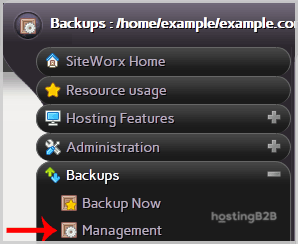
Once logged in look for the main menu on the left side of the screen. Find and click on the Backups menu item to expand its options. - Access Backup Management
Within the expanded Backups section click on the Management menu item. This will take you to the main screen for managing existing backups and initiating restores.
- Initiate the Restore Process
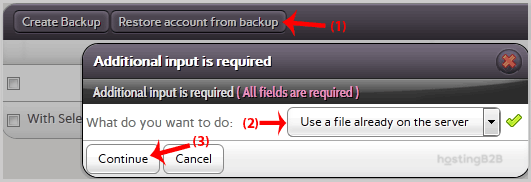
On the Backup Management page locate and click the button labeled “Restore account from backup”. A dropdown menu will appear presenting you with options for the source of the backup file. - Select the Backup Source and Continue
From the dropdown menu select the option Use a file already on the server. After making your selection click the Continue button to proceed to the next step. - Select Partial Backup and Confirm
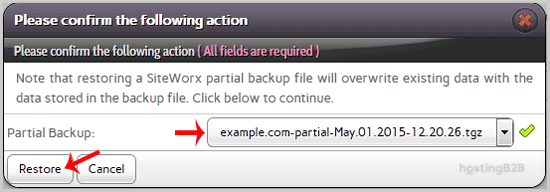
A final confirmation window will appear. In this window use the dropdown menu to select Partial Backup. This is the most critical step to ensure you do not overwrite your entire account. Once selected click the Restore button to begin the process.
Your SiteWorx account has now been restored from the selected partial backup. The system will process the file and restore only the specified components.
Confirming a Successful Data Restoration
After the restoration process completes it is vital to verify that the correct data has been recovered. Navigate to the specific area of your website or application that was affected. If you restored database content check the relevant tables for the recovered entries. If you restored website files use an FTP client or the SiteWorx File Manager to confirm their presence and integrity. This final check ensures the issue is fully resolved.
Automate and Secure Your Backup Strategy
While manual restores are useful a proactive approach to data protection is always better. Understanding the importance of regular website backups is the first step toward building a resilient infrastructure. For businesses in regulated or performance-sensitive industries relying on manual processes introduces unnecessary risk. Our reliable web hosting solutions provide a strong foundation but for ultimate peace of mind consider a dedicated solution. Services like Acronis Cyber Protection and integrated backup offer automated scheduled backups and advanced security features to safeguard your critical data against threats and accidental loss.
Frequently Asked Questions
A partial backup contains specific parts of your hosting account such as individual domain files a specific database or email accounts rather than a complete snapshot of the entire account.
You can typically restore website files for a specific domain email data user accounts and individual databases. The exact options depend on how the original backup was structured.
The restoration process is generally very fast and should not cause noticeable downtime for your entire website. However the specific component being restored may be briefly inaccessible.
By default SiteWorx often stores backups in a dedicated directory within your account’s home folder. The exact location can be configured in your backup settings.
If a restore fails check the system logs in SiteWorx for any specific error messages. Ensure the backup file is not corrupted and that you have sufficient disk space. If the problem persists contact your hosting support team for assistance.









