
If you are encountering errors when uploading large files or submitting complex forms on your website, the issue often relates to your server’s PHP settings. Specifically, the post_max_size directive limits the maximum size of data that can be sent in a single POST request. This guide provides a clear, step-by-step process to increase this value using the CloudLinux PHP Selector within your Plesk control panel, helping you resolve upload issues quickly and efficiently.
Understanding Key PHP Upload Limits
Before changing any settings, it is important to understand two critical PHP directives that work together to control file uploads. Misconfiguring them is a common source of frustration. The post_max_size value defines the total allowed size for all data in a POST request, while upload_max_filesize sets the limit for a single uploaded file. For uploads to work correctly, post_max_size must be greater than or equal to upload_max_filesize. Adjusting only one can lead to persistent errors.
How to Increase post_max_size in Plesk
Follow these simple steps to adjust the PHP post_max_size for your website directly from the Plesk interface. This process leverages the CloudLinux PHP Selector, which provides granular control over your PHP environment without needing to edit configuration files manually.

- Log in to your Plesk Account
Begin by securely logging into your Plesk control panel using your administrator credentials. - Navigate to the PHP Selector
Once logged in, locate the main menu. In the right-hand sidebar, find and click on the PHP Selector option to open the PHP configuration interface.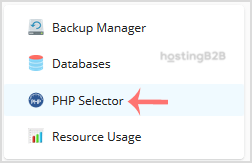
- Access the PHP Options Tab
Inside the PHP Selector, you will see several tabs. Click on the Options tab to view the list of configurable PHP directives for your selected PHP version.
Note: If the Options page displays an error related to using a native PHP version, you must first switch to a non-native version. You can do this from the main PHP Selector screen before returning to the Options tab. - Adjust the post_max_size Value
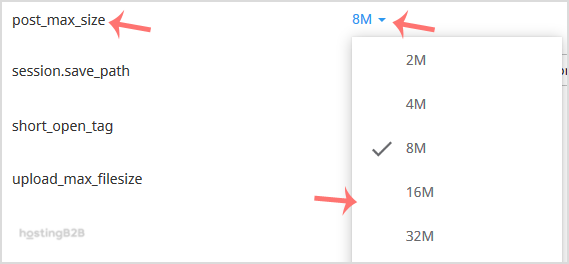
Scroll through the list of options until you find the post_max_size directive. Click on the current value, which will reveal a drop-down menu. Select a new, higher limit that meets your application’s requirements. The change is saved and applied automatically.
Important Next Steps After the Change
After you increase post_max_size, it is best practice to review related settings to ensure system stability and performance. We highly recommend you also check and increase PHP’s upload_max_filesize to match your new limit. Additionally, processing larger files may require more server memory. If you continue to see errors, you might need to increase or decrease PHP memory limit to accommodate the larger operations.
Troubleshooting Common Problems
If your changes do not seem to take effect, first try clearing your website and browser cache. If the issue persists, double-check that you have selected a non-native PHP version, as the Options tab is often unavailable for system-default PHP handlers. You can also confirm the correct PHP version is assigned to your domain within Plesk’s main hosting settings. For persistent issues, reviewing other configurations like those discussed in our Plesk vs cPanel comparison might offer additional insights.
When to Consider a Hosting Upgrade
Consistently hitting resource limits like post_max_size or memory ceilings can be a sign that your application has outgrown its current hosting environment. While adjusting these values provides a temporary fix, a long-term solution may involve upgrading your plan. If you need more power, control, and dedicated resources, consider our scalable VPS Hosting solutions. For the ultimate in performance and resource allocation, our high-performance dedicated servers provide an unmatched environment for demanding applications.
Frequently Asked Questions
The upload_max_filesize directive limits the size of a single file that can be uploaded. The post_max_size directive limits the total size of all data in a POST request, which includes the file plus any other form data. To avoid errors, post_max_size should always be larger than upload_max_filesize.
A safe value depends entirely on your needs. For a typical WordPress site, 64M is often sufficient. For sites handling large media or data files, you might need 128M or 256M. Avoid setting this value excessively high, as it can make your server vulnerable to certain types of denial-of-service attacks.
This usually happens when your domain is using a “native” PHP version provided by the operating system. The CloudLinux PHP Selector can only manage non-native versions. To fix this, go to the main PHP Selector page and choose a different, non-native PHP version from the dropdown menu first.
The change made through the CloudLinux PHP Selector in Plesk is typically applied instantly. There is no need to restart any services. However, you may need to clear your application or browser cache to see the change reflected immediately.
Yes, but the method depends on your hosting environment. On servers without CloudLinux, you would typically edit the php.ini, .htaccess, or .user.ini file directly. The CloudLinux Selector in Plesk provides a much safer and more user-friendly interface for this task.









