

Encountering errors when uploading large files or submitting complex forms on your website can be a significant obstacle. Often the cause is a PHP configuration limit called `post_max_size`. This guide provides a clear and direct method to increase the PHP post_max_size value within your cPanel account using the CloudLinux PHP Selector, empowering you to handle larger data requests without interruption.
Understanding Key PHP Upload Limits
Before changing any values it is important to understand what `post_max_size` does and how it interacts with other PHP settings. This directive defines the maximum size of POST data that PHP will accept. Any data larger than this limit will be rejected. This is closely related to another setting `upload_max_filesize`. For successful file uploads both values must be configured correctly. As a rule `post_max_size` should be equal to or greater than `upload_max_filesize`. For example to upload a 64MB file you would need to set both limits to at least 64M.
How to Increase post_max_size in cPanel
Adjusting your PHP settings is a straightforward process using the tools available in your cPanel control panel. Follow these four steps carefully to modify the `post_max_size` directive for your hosting account.

- Log into your cPanel Account
First access your cPanel dashboard using the credentials provided by your hosting provider. - Navigate to Select PHP Version
In the “Software” section of the cPanel main page locate and click on the “Select PHP Version” icon. This tool allows you to manage your account’s PHP version and specific settings.
- Switch to the Options Tab
Once the CloudLinux PHP Selector interface loads, click on the “Options” tab in the main navigation menu. This will display a list of common PHP directives that you can modify.
- Adjust the post_max_size Value
Scroll through the list of options to find `post_max_size`. Click the dropdown menu next to it and select your desired new limit. The change is saved automatically once you select a new value.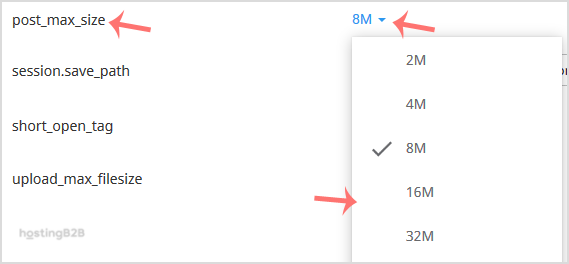
Troubleshooting and Important Notes
Sometimes you may encounter an issue when trying to modify PHP settings. A common problem is an error message on the Options page related to using a “native” PHP version. If this happens you must first return to the “Version” tab and change the PHP version to a non-native option like `ea-php74` or higher. After changing the version you will be able to access the Options tab and adjust your limits. Remember to also increase the upload max filesize to match your new `post_max_size` for file uploads to work correctly.
When Increasing Limits Is Not Enough
While adjusting PHP limits can solve many upload issues, consistently hitting resource ceilings may indicate that your application has outgrown its current environment. A shared web hosting environment has finite resources. If your website requires more power memory or configuration flexibility it may be time to consider an upgrade. Moving to a more robust platform can provide the performance and control necessary for your growing needs. If you find yourself in this situation you can learn how to migrate from shared hosting to VPS to ensure a smooth transition.
Frequently Asked Questions
Here are answers to some common questions about PHP’s `post_max_size` setting.
The upload_max_filesize directive sets the maximum size for a single uploaded file. The post_max_size directive sets the total maximum size for all data in a POST request which includes all files and other form data. To allow large file uploads you must ensure post_max_size is greater than or equal to upload_max_filesize.
A safe and common value for post_max_size is between 64M and 128M. The right value depends entirely on your website’s needs. For instance if you need to upload large video files or high-resolution images you will require a higher limit than a simple contact form.
If your changes do not seem to take effect first ensure you have also set upload_max_filesize to an appropriate value. Second confirm you are not using a native PHP version which can prevent custom settings. Finally some applications may have their own upload limits that override the server settings so check your application’s configuration as well.
The CloudLinux PHP Selector in cPanel typically provides a predefined list of values for security and stability. If you require a custom value that is not available in the dropdown menu you may need a hosting plan with more configuration flexibility such as a Virtual Private Server.
Setting an excessively high value for post_max_size can potentially impact server performance as it allocates more memory to handle large POST requests. It is best practice to set the limit to a value that meets your specific needs without being unnecessarily large.









