
FlatPress is an excellent choice for a fast, lightweight, and standards-compliant blogging platform that does not require a database. This simplicity makes it a secure and efficient option for many users. This guide provides a complete walkthrough to help you install FlatPress via Softaculous in your SiteWorx control panel, getting your new blog online in just a few minutes.
Before You Begin
Before starting the installation process, ensure you have the necessary credentials to access your hosting control panel. You will need your username and password to log into your SiteWorx account. Having these details ready will make the following steps much smoother.
Step-by-Step FlatPress Installation Guide
Follow these instructions carefully to complete the FlatPress installation. The Softaculous application installer automates most of the process, making it straightforward even for beginners.

- Log into your SiteWorx Account
First, access your SiteWorx control panel by navigating to your domain, typically at an address like www.example.com:2443/siteworx/. - Navigate to Hosting Features
Once logged in, locate the SiteWorx Menu on the left-hand side. If the Hosting Features section is not already expanded, click on it to reveal its options. - Open Softaculous
Within the Hosting Features menu, find and click on the Softaculous option to launch the auto-installer interface.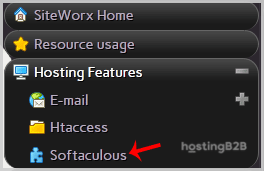
- Access the Softaculous Interface
SiteWorx will now open the main Softaculous dashboard, where you can manage and install hundreds of web applications. - Find FlatPress
In the left-hand navigation pane of Softaculous, find the Blogs category. Click on it, and a list of available blogging platforms will appear. Select the FlatPress link from this list.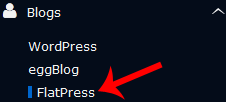
- Initiate the Installation
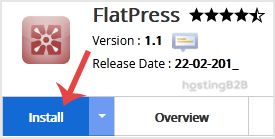
On the FlatPress overview page, click the prominent Install button to begin the setup process.
- Configure Software Setup Details
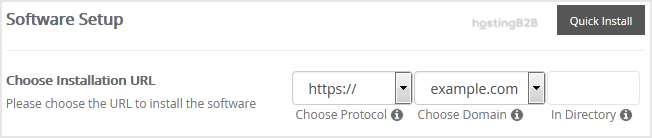
You must now provide some essential details for your new installation.- Choose Installation URL Select the correct protocol (http or https) and the domain you wish to use. In the In Directory field, you can specify a subdirectory for the installation (e.g., ‘blog’). If you want FlatPress to be on your main domain, leave this field empty.
- Choose Installation URL Select the correct protocol (http or https) and the domain you wish to use. In the In Directory field, you can specify a subdirectory for the installation (e.g., ‘blog’). If you want FlatPress to be on your main domain, leave this field empty.
- Create Your Admin Account
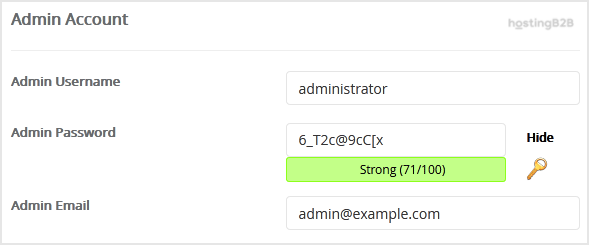
This step is critical for managing your blog. Fill in the following fields to create your administrator profile.- Admin Username Choose a unique username. For security, avoid common names like ‘admin’ or ‘administrator’.
- Admin Password Create a strong, unique password containing a mix of letters, numbers, and symbols.
- Admin Email Enter a valid email address. This will be used for notifications and password resets.
Important Note: Be sure to copy your admin username and password and store them in a secure location. You will need these credentials to access the FlatPress admin dashboard after installation. It is vital to secure your admin account from the very beginning.
- Review Advanced Options
This section is typically safe to leave at its default settings. Here you could change the database name or configure automated backups. Be aware that frequent automated backups can consume a significant amount of disk space on your web hosting services plan. - Complete the Installation
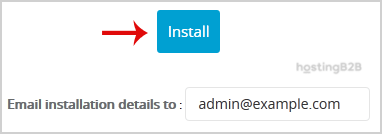
Finally, scroll to the bottom of the page and click the Install button. Softaculous will now handle the file installation and configuration for you.
Congratulations. You have successfully installed FlatPress via Softaculous in SiteWorx. You can now visit your domain to see your new blog.
Your First Steps After Installation
With FlatPress installed, your next step is to log into the administration panel and start customizing your site. You can access the login page by adding /login.php to your FlatPress URL (e.g., www.example.com/login.php). Use the admin username and password you created during step 8. Once logged in, we recommend exploring the options to change your site’s title, write your first post, and explore available themes.
Why Choose a FlatPress Database-Free Blog
FlatPress stands out because it does not rely on a traditional database like MySQL. Instead, it stores all content in simple text files. This “flat-file” architecture offers several key advantages. It reduces server load, simplifies backups, and minimizes potential security vulnerabilities associated with database management. This makes it a perfect solution for users who need a fast, secure, and low-maintenance blog. If you find your needs grow over time, you can always explore a more scalable hosting solution.
Frequently Asked Questions
FlatPress is a lightweight, open-source blogging platform that does not require a database. It stores all of its data in text files, which makes it very fast, secure, and easy to back up and manage.
No, you do not need a database like MySQL or MariaDB to run FlatPress. Its flat-file architecture is one of its main features, simplifying the hosting requirements and overall maintenance.
Softaculous makes updates easy. When a new version of FlatPress is available, you will typically see a notification in your Softaculous dashboard within SiteWorx. You can then update your installation with just a few clicks.
If the installation through Softaculous fails, first check the error message provided. Common issues can include incorrect directory permissions or reaching a resource limit on your hosting plan. You can review the installation steps to ensure all information was entered correctly or contact our support team for assistance.
Yes, Softaculous supports hundreds of applications. If you decide you need a more feature-rich content management system, you can easily install other popular blogging platforms like WordPress using the same process within SiteWorx.









