

How to protect a folder with Username and Password in cPanel
You can lock a directory with a password by using the cPanel Password Protected Directories Option. This is a fundamental security measure for any web hosting environment — protecting admin panels, staging directories, and sensitive file areas from unauthorized access.
1. Log into your cPanel account.
Want to keep sensitive folders private?

Explore our web hosting plans and take control of your website’s security today!
Web Hosting2. In the Files section, click on Directory Privacy Icon.
3. Click the icon to open a folder.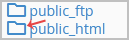
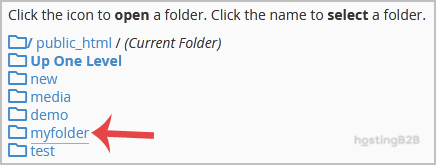
4. Click on the name of the directory you want to protect by password.
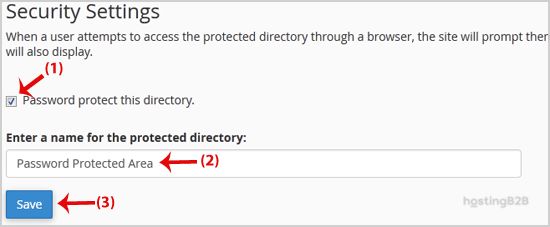
5. Under Security Settings, check the box next to the Password protect this directory and enter a name for the protected directory like Password Protected Area. Then click the Save button.
6. Now click on the Go back button.
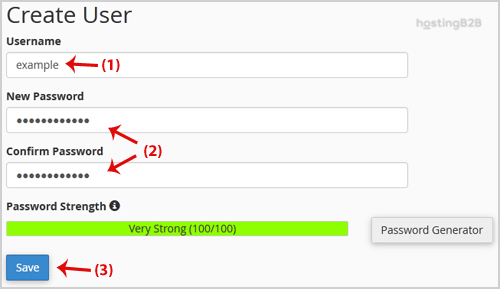
7. Scroll down the page and under Create User fill in the username and password fields or use the Password Generator option to generate a new random password and copy the user/password to a notepad. You will need this when you want to open your password-protected directory and click on the Save button.
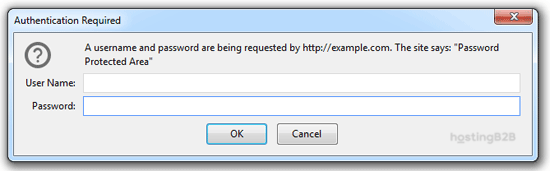
Now, should you try to open your password-protected directory in your browser through the URL www.example.com/myfolder, which is already password protected, your browser will prompt you to enter your username and password.
Read more about cPanel from our Knowledgebase Blog Articles
- How to restore cPanel Backup?
- Create an Email Account in cPanel
- Reset my cPanel Account Password
- Change cPanel Style and Theme
- Change the Language of your cPanel
Round-the-Clock Support
Our certified experts are always available to resolve issues, ensure compliance, and maintain performance. For more information, contact our experts!
Password-protecting directories is just one layer of defence. For a more comprehensive approach, we recommend also enabling two-factor authentication on your cPanel account and installing an SSL certificate to encrypt all data transmitted between your server and visitors. For advanced security monitoring including intrusion detection, WAF, and DDoS mitigation, explore our web application security solutions. Once you’ve installed cPanel and you’re up and running, one of the first things you should do is lock down sensitive parts of your site. Not sure how to do it? Check out our guide on How to install cPanel and add a quick security boost to your setup.








