
Security is important for our data safety, and we recommend you enable the Two-Factor Authentication (2FA) on your cPanel account so that hackers will be unable to access your cPanel account even if they have somehow obtained your account’s user and password details. This is an essential security layer for any web hosting account — especially for businesses handling customer data, financial transactions, or operating in regulated industries.
What are the Requirements?
You will need a smartphone with a supported time-based one-time password app. Mobile Phone OS like Android, Windows, and iOS and Blackberry, have an app for 2FA.
How to Enable the Two-Factor Authentication on Your cPanel Account?
1. Firstly log into your cPanel account.

2. Then in the Security section, click on the Two-Factor Authentication Icon.
3. After that click on the Setup Two-Factor Authentication and under Step 1, Scan QR code using your Google Authenticator or 2FA Authenticator APP. If your APP doesn’t have a QR Code reader, you can manually enter the Account name and Key number.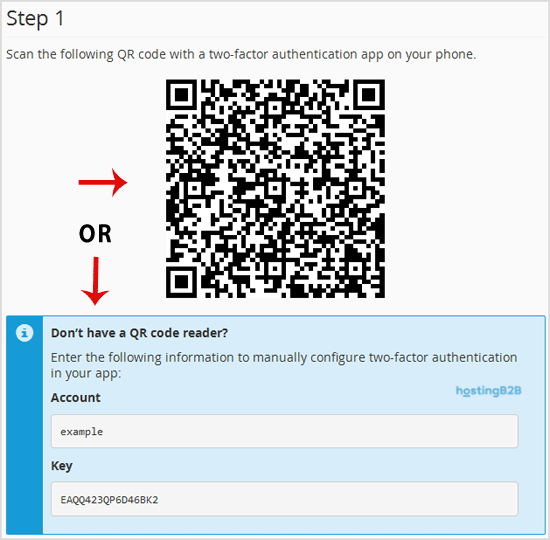
4. Finally enter your Two-Factor Authentication code and click the Configure Two-Factor Authentication button.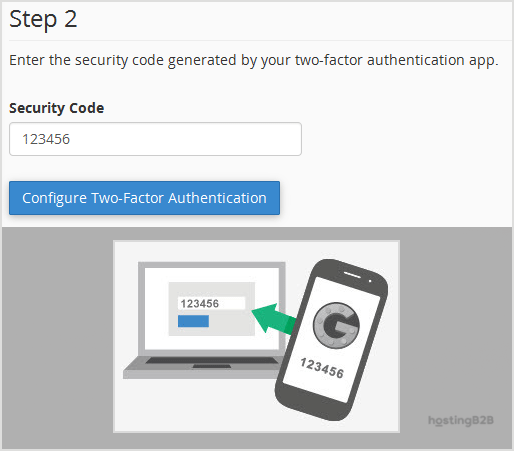
You will see a message, such as Success: Two-factor authentication is now configured on your account.
Enabling 2FA is just one part of a complete security strategy. We also recommend password-protecting sensitive directories in cPanel and installing an SSL certificate to encrypt all data in transit. For businesses requiring advanced protection including DDoS mitigation and web application firewall (WAF) coverage, HostingB2B offers enterprise-grade security solutions that complement your cPanel setup.








