
Redirecting subdomains is useful when migrating services, consolidating domains, or pointing traffic to an external platform. This guide shows how to redirect a subdomain to an external URL in Plesk, available on our web hosting and VPS hosting plans.
1. Log in to your Plesk account.
2. In the Sidebar Menu, click on Websites & Domains.


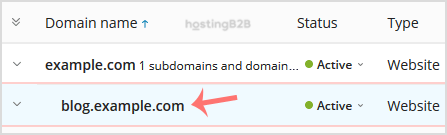
3. Under Domain Name, click on your subdomain.
4. Choose  Hosting Settings.
5. On the right side of Hosting Type, click on Change, displaying next to Website.

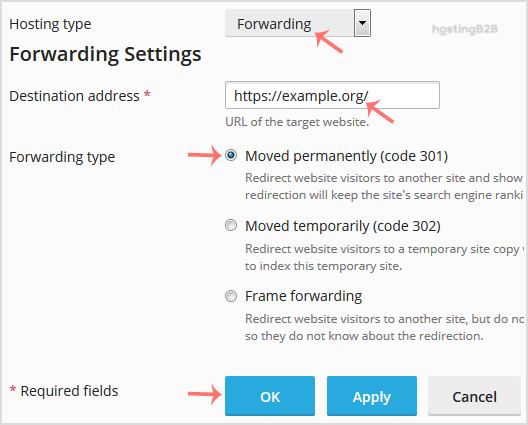
6. Under Hosting Type from the drop-down menu, select the Forwarding option.
– In the Destination Address, enter the external URL of the website where you wish to redirect your subdomain to.
– Forwarding Type: Select Moved permanently (301 redirect — best for SEO) or Moved Temporarily (302 redirect). For more details on redirect types and their SEO impact, see our guide on how to redirect a page using .htaccess.
Click Ok.
You can get a warning that the content of the website will be deleted. Once you confirm with Yes, your subdomain will be redirected to your selected destination.
For related Plesk tasks, see how to add a subdomain or remove an existing subdomain redirect in Plesk.








