

Database errors can bring your website to a halt causing frustrating downtime and potential data loss. When you suspect table corruption is the cause this guide provides a direct and effective solution. Follow these clear steps to repair a MySQL database using the powerful phpMyAdmin tool available directly within your cPanel control panel.
Before You Begin A Critical Safety Step
Before you modify your database in any way it is absolutely essential to create a complete and current backup. The repair process is generally safe but unforeseen issues can occur. A backup is your safety net ensuring you can restore your data if anything goes wrong. We strongly recommend you generate a full cPanel backup before proceeding. For businesses seeking automated and robust data safety our integrated backup and cyber protection solutions offer comprehensive peace of mind.
Step-by-Step Guide to Repairing Your Database
This cPanel database maintenance tutorial walks you through the exact procedure for fixing corrupted tables. Access your hosting account and follow along to restore your database to a healthy state.

- Log into your cPanel account
Start by securely logging into your cPanel hosting dashboard using your provided credentials. - Navigate to phpMyAdmin
In the main cPanel interface find the Databases section. Click on the phpMyAdmin icon to open the database management tool in a new tab.
- Expand your database list
Once phpMyAdmin loads look at the navigation panel on the left. Click the small plus symbol or expand button next to your cPanel username to see a list of all your databases.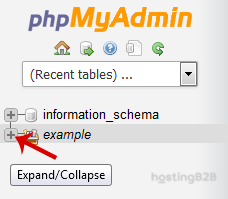
- Select the database you need to repair
From the expanded list identify and click on the name of the database that is experiencing issues. This will display all the tables within that database in the main panel on the right.
- Select all tables and run the Repair command
Scroll to the bottom of the table list in the main panel. Click the Check All checkbox to select every table in the database. Next find the dropdown menu labeled With selected and choose the Repair table option from the list. The repair process will start automatically.


Understanding the Repair Results
After the operation completes phpMyAdmin will display a results screen. If the process was successful you will see a green confirmation message with the status “Ok” for each table. This confirms that the tables were checked and any correctable errors were fixed. However if you see an error message such as “Error unknown engine” it may indicate a problem with the table’s storage engine that the standard repair command cannot fix. This is more common with certain table types like InnoDB.
When the Repair Is Not Enough
While the phpMyAdmin repair tool is effective for common corruption issues some problems may persist. If the repair fails or if database errors continue it could signal a more complex issue or even underlying hardware problems. Persistent database issues can also be a symptom of deeper security risks for your databases that require expert attention. In these situations our Managed IT Services team can provide advanced diagnostics and resolution ensuring your infrastructure remains stable and secure.
Frequently Asked Questions
Here are answers to common questions about database repair and maintenance in cPanel.
Database corruption can happen for several reasons including unexpected server shutdowns hardware failure software bugs or a website script that terminates improperly while writing to the database.
Yes the process is generally safe for fixing common issues especially with MyISAM tables. However it is never one hundred percent risk-free which is why creating a backup beforehand is not optional it is a mandatory precaution. The importance of regular website backups cannot be overstated.
You typically only need to repair a database when you notice errors or performance issues. For proactive maintenance it is better to optimize the database regularly which helps improve performance and can prevent some types of corruption.
Repairing a database is a reactive process that attempts to fix corrupted tables after a problem has occurred. Optimizing a database is a proactive maintenance task that reorganizes table data and indexes to improve query speed and reduce storage fragmentation.
Yes. After selecting your database you can simply check the box next to the specific table you want to fix instead of using the “Check All” option. Then select “Repair table” from the dropdown menu as usual.









