
Regularly updating your SolusVM control panel password is a fundamental step in safeguarding your virtual private server. A strong, unique password helps protect your VPS hosting infrastructure from unauthorized access and potential threats. This guide provides clear, actionable steps to change your password and offers expert advice on overall SolusVM security management.
How to Change Your SolusVM Password
If you can currently access your SolusVM environment and know your existing password, you can update it in just a few moments. Following these steps ensures a smooth and secure transition to your new credentials.
- Log In to the Control Panel
First, you need to log in to the SolusVM Control Panel using your current username and password. - Select Your Virtual Private Server
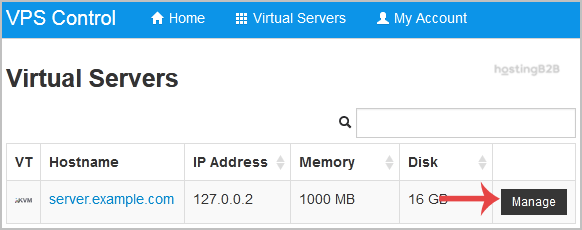
If your account manages multiple VPS instances, a list will be displayed. Please select the specific server for which you intend to change the password.
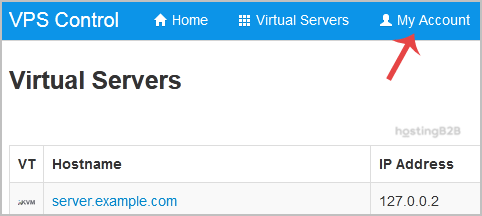
- Navigate to My Account
In the main navigation menu at the top of the panel, locate and click on the My Account option to access your user profile settings. -
Enter Your Password Details
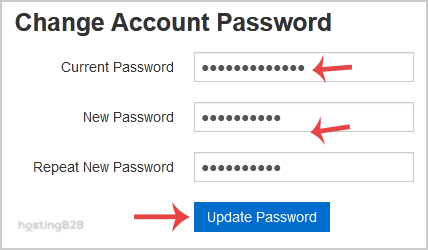
Within the My Account section, find the form labeled Change Account Password. You will need to complete three fields accurately.- Current Password Enter the password you just used to log in.
- New Password Type your new, secure password.
- Repeat New Password Confirm your new password by typing it again.
- Update Your Password
After filling in all the fields, click the Update Password button. A confirmation message will appear, indicating that your SolusVM password has been successfully changed.
What to Do If You Forgot Your Password
Forgetting a password can happen, but it is important to follow the correct recovery procedure to regain access securely. The process for the SolusVM control panel password may differ from the server’s root password. If you cannot log in to SolusVM, you will typically need to contact your hosting provider’s support team for a password reset link or manual intervention. However, if you need to manage your server directly, you may need to reset the VPS root admin password using SolusVM once you regain access. You should also update your VNC password at the same time to ensure all access credentials are synchronized.

Best Practices for SolusVM Security
Effective SolusVM VPS password management goes beyond a single update. To ensure robust and secure VPS control panel access, we recommend adopting a comprehensive security posture. Start by creating passwords that are long, complex, and difficult to guess, combining uppercase letters, lowercase letters, numbers, and symbols. Avoid using personal information or common words. For an even greater level of protection, enable two-factor authentication (2FA) whenever possible. This adds a critical second layer of verification. Complement your access controls with network-level protection — our DDoS protection shields your VPS from volumetric attacks that can disrupt service availability. If managing complex security tasks feels overwhelming, consider our Managed IT Services, where our experts handle server security for you.
Frequently Asked Questions
Here are answers to common questions about managing your SolusVM password and security.
For optimal security, we recommend changing your SolusVM control panel password every three to six months. You should also change it immediately if you suspect your account has been compromised.
A strong password is at least 12 characters long and includes a mix of uppercase letters, lowercase letters, numbers, and special symbols. It should not contain dictionary words or easily guessable information like your name or birthdate.
No, you should never use the same password for your control panel and your server’s root or administrator account. Using unique passwords for each access point minimizes your risk if one set of credentials is ever exposed.
The SolusVM password grants you access to the control panel, which is used to manage your VPS, such as rebooting it or changing OS settings. The root password provides direct administrative access to the operating system inside your VPS.
Your initial login credentials for the SolusVM control panel are typically sent in the welcome email you received when you first purchased your VPS Hosting plan. If you cannot find this email, please contact our support team for assistance.








