You can add a cPanel email account to an Android mobile using the built-in email application. You do not need to use any external application from Google Play. This works with any custom domain email from our web hosting or email hosting plans.
1. Open your android mobile, Swipe up from the bottom of the screen to the top. Locate the Settings icon and open it.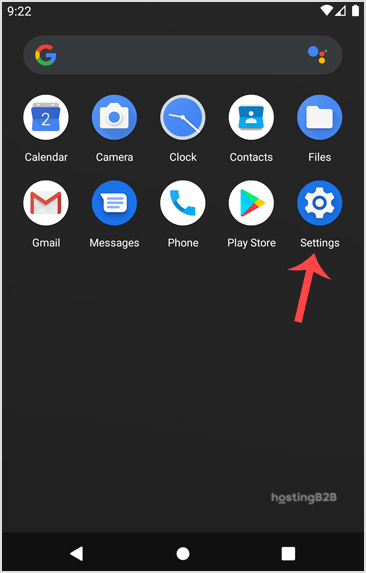
2. Scroll down to the Accounts section and tap on it.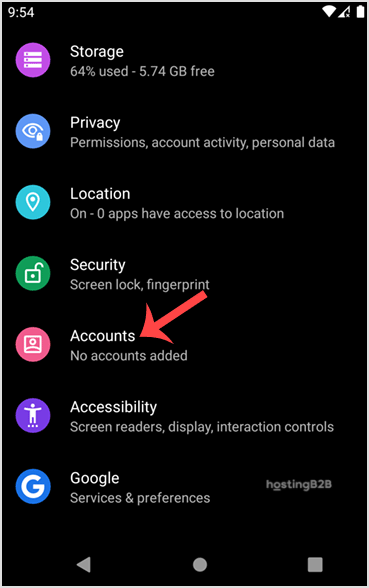

3. Tap on + Add account.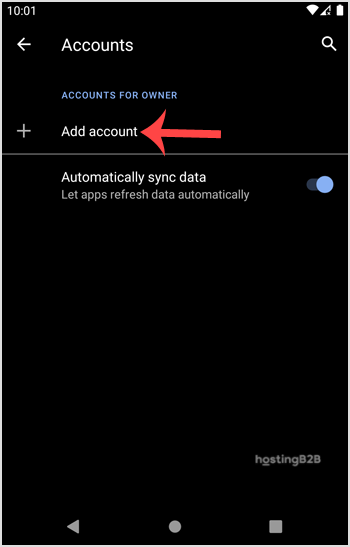
4. Now tap on the Personal IMAP option.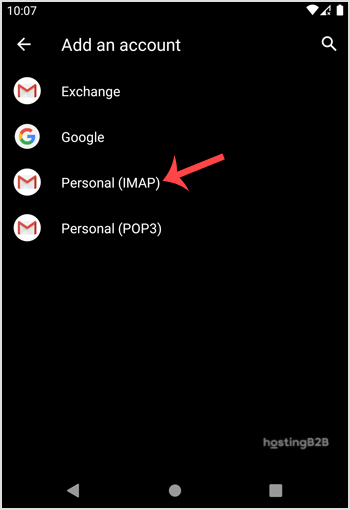
5. In the “Add your email address” section, enter your full email address such as [email protected]. Then tap Next and enter your password. Tap on the Next button again.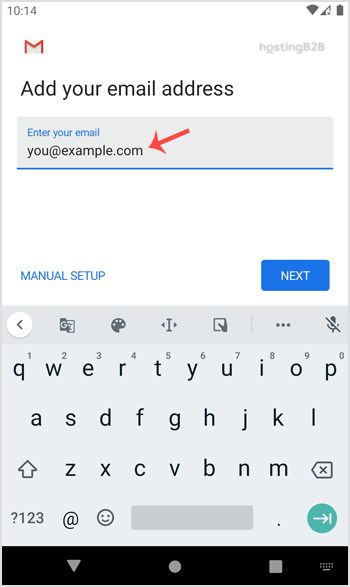
6. Take a look at Incoming Server Settings and Outgoing Mail Server Settings. If everything looks ok, then tap Next.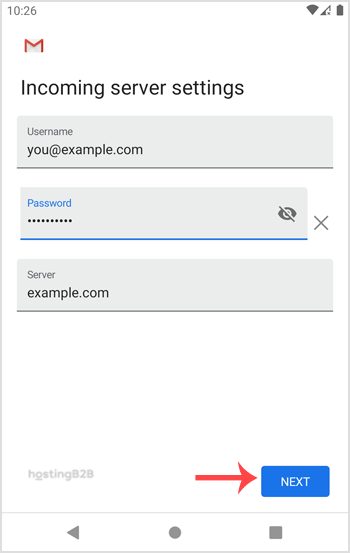
7. Under the accounts option, you can select Email Sync Frequency and some other options. Select it as per your needs and press Next.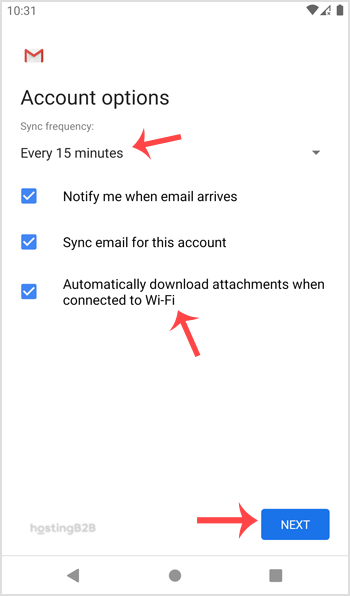
8. Under Your name, enter your name and press Next.
Congratulations! Now, whenever you receive an email, you will be notified. You can see a list of email accounts from your Android at Settings >> Accounts. We recommend ensuring your domain has a valid SSL certificate installed so all email connections are encrypted.
Check out our other email tutorials: