
Privacy and security are essential for businesses, developers, and remote teams. This guide covers how to setup WireGuard VPN on VPS, giving you complete control over your traffic while eliminating reliance on third-party VPN providers. Running your own VPN on a Virtual Private Server (VPS) is one of the most effective ways to secure your infrastructure.
WireGuard is one of the fastest and most secure VPN protocols available today. With a lightweight codebase, modern cryptography, and simple configuration, it has become the preferred VPN solution for Linux servers and cloud environments. If you need a reliable platform for deployment, HostingB2B VPS plans provide enterprise-grade SSD storage, premium bandwidth, and full root access.
What Is WireGuard?
WireGuard is an open-source VPN protocol built into the Linux kernel. Unlike OpenVPN or IPSec, it uses modern encryption standards and a streamlined architecture, resulting in better performance and easier administration.

Key benefits include:
- High-speed encrypted connections
- Simple configuration
- Lower resource usage
- Reduced attack surface
- Cross-platform support for Windows, macOS, Linux, iOS, and Android
Prerequisites
Before starting, ensure you have:
- Ubuntu 20.04+ VPS with root or sudo access
- Static IP address or domain name
- Basic Linux command-line knowledge
- A client device for VPN access
Step 1: Install WireGuard
Update your server and install WireGuard:
sudo apt update && sudo apt install wireguard -y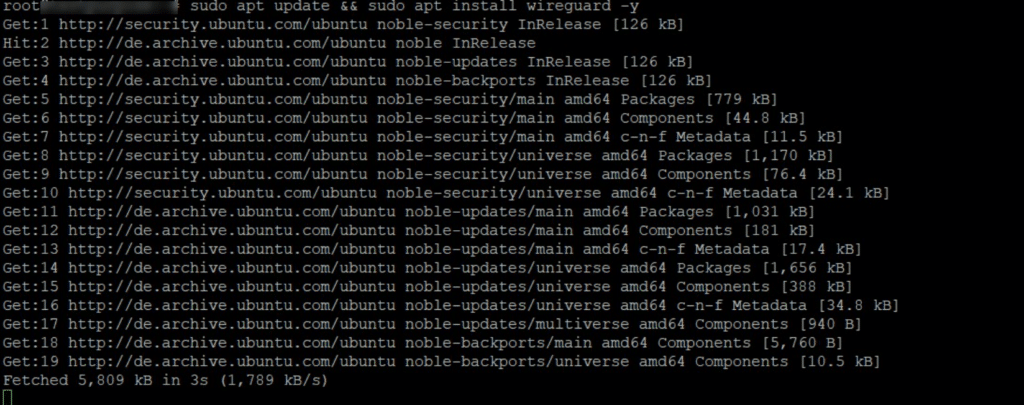
Step 2: Generate Server Keys
Create a key pair for the server:
cd /etc/wireguard
umask 077
wg genkey | tee server_private.key | wg pubkey > server_public.key
Keep the private key secure and never share it publicly.
Step 3: Configure the Server
Create /etc/wireguard/wg0.conf:
[Interface]
PrivateKey = <server_private_key>
Address = 10.0.0.1/24
ListenPort = 51820
Replace <server_private_key> with your generated key.
Step 4: Enable IP Forwarding
Allow VPN traffic to pass through the server:
echo 'net.ipv4.ip_forward=1' | sudo tee -a /etc/sysctl.conf
sudo sysctl -p
Verify the setting:
sysctl net.ipv4.ip_forwardStep 5: Open the Firewall Port
Allow WireGuard traffic through the firewall:
sudo ufw allow 51820/udp
sudo ufw reload
This ensures clients can connect successfully.
Step 6: Add a Client Peer
Generate a key pair on the client device and add the following to wg0.conf:
[Peer]
PublicKey = <client_public_key>
AllowedIPs = 10.0.0.2/32
Client Configuration
Create a client configuration file:
[Interface]
PrivateKey = <client_private_key>
Address = 10.0.0.2/24
DNS = 1.1.1.1

[Peer]
PublicKey = <server_public_key>
Endpoint = <your_vps_ip>:51820
AllowedIPs = 0.0.0.0/0
Step 7: Start WireGuard
Start the VPN interface:
sudo wg-quick up wg0Enable automatic startup:
sudo systemctl enable wg-quick@wg0Verify the connection:
sudo wg showFor additional setup assistance, see the HostingB2B Linux VPS guide for server hardening best practices.
WireGuard vs OpenVPN
| Feature | WireGuard | OpenVPN |
|---|---|---|
| Performance | Very Fast | Moderate |
| Setup Complexity | Simple | Complex |
| Codebase | Small | Large |
| Mobile Support | Excellent | Good |
| Linux Kernel Integration | Yes | No |
Common Use Cases
Remote Teams
Secure access to internal applications, databases, and company resources from any location.
iGaming and Fintech
Protect administrative access to production environments and sensitive systems. For more information, explore HostingB2B Managed Hosting solutions.
SaaS and DevOps
Secure CI/CD pipelines, staging environments, and private infrastructure without exposing services to the public internet.
Best Practices
For production deployments:
- Use a unique key pair for every device.
- Rotate keys periodically.
- Restrict access using firewall rules.
- Monitor peer activity and connection status.
- Store private keys securely.
Businesses with high-availability requirements should consider deploying WireGuard across multiple VPS locations for redundancy. Following this guide on how to setup WireGuard VPN on VPS is just the starting point — for advanced routing and enterprise configurations, consult the official WireGuard documentation.
Frequently Asked Questions
Is WireGuard safe for production?
Yes. WireGuard uses modern cryptographic standards and has a significantly smaller codebase than traditional VPN solutions.
What port does WireGuard use?
By default, WireGuard listens on UDP port 51820.
How many users can connect?
A properly sized VPS can support hundreds of concurrent connections depending on available resources.
Does WireGuard support mobile devices?
Yes. Official applications are available for iOS and Android, as well as Windows, macOS, and Linux.
Yes. WireGuard uses modern cryptographic standards and has a significantly smaller codebase than traditional VPN solutions.
By default, WireGuard listens on UDP port 51820.
A properly sized VPS can support hundreds of concurrent connections depending on available resources.
Yes. Official applications are available for iOS and Android, as well as Windows, macOS, and Linux.
Conclusion
WireGuard is a fast, secure, and easy-to-manage VPN solution for modern infrastructure. Whether you are securing remote employees, protecting administrative access, or creating private connections between systems, this guide on how to setup WireGuard VPN on VPS has shown that WireGuard delivers excellent performance with minimal complexity.
HostingB2B provides high-performance VPS infrastructure with SSD storage, premium networking, and 24/7 support, allowing you to deploy a WireGuard VPN in minutes.
Ready to get started? View HostingB2B VPS plans and launch your WireGuard-ready server today.