Regularly updating your email password is a critical step in maintaining the security of your digital communications. Whether for routine security maintenance or because you suspect an account has been compromised, changing your password in the SiteWorx control panel is a straightforward process. This guide provides clear, actionable steps to help you secure your account quickly and effectively, ensuring your secure business email hosting remains protected.
Step-by-Step Guide to Update Your SiteWorx Email Password
Follow this procedure carefully to update the password for an existing email account. This process requires you to have access to your SiteWorx account. If you cannot log in, please contact our support team for assistance.
- Log into your SiteWorx account
First, access your SiteWorx control panel. The URL is typically your domain name followed by the port number 2443, for example, www.example.com:2443/siteworx/. - Navigate to Hosting Features
Once logged in, locate the main menu on the left. Ensure the Hosting Features section is expanded. If it is not, click on it to reveal the options within. - Access the Mailboxes Menu
Within the Hosting Features menu, find and click on the E-mail menu item. This will open a submenu. From here, select the Mailboxes option to manage your email accounts.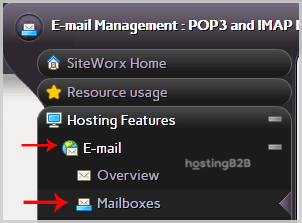
- Select the Email Account to Edit
You will now see a list under the Existing E-mail Boxes tab. Find the specific email address you wish to update, select it, and then click the Edit button. This will take you to the settings page for that mailbox.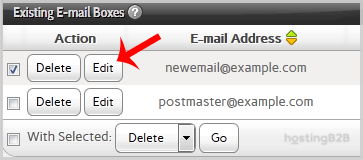
- Enter Your New Password
On the edit page, locate the password field. You can either type your new secure password directly into the field or use the built-in password generator to create a strong, random password. We highly recommend using the generator for maximum security.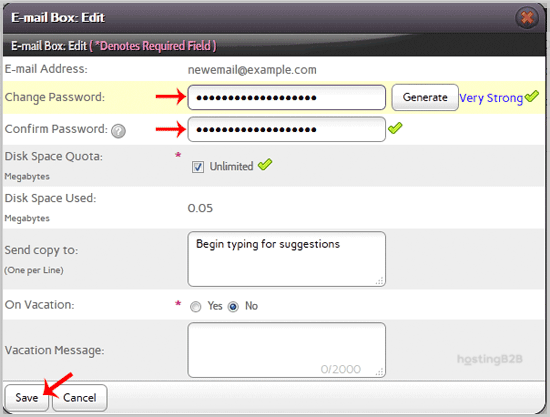
- Save Your Changes
After you have entered the new password, scroll to the bottom of the page and click the Save button. You should see a success message confirming that the password has been updated.
Expert Tips for a Stronger Email Password
Creating a robust password is your first line of defense. A weak password can undermine all other security measures. When you perform a SiteWorx email password reset, follow these industry-standard guidelines.

- Length Matters Aim for a password that is at least 12-16 characters long.
- Use Complexity Combine uppercase letters, lowercase letters, numbers, and symbols to make your password harder to guess.
- Be Unique Never reuse passwords across different services. If one account is breached, others remain safe.
- Avoid Personal Details Do not use information that is easy to find, such as your name, birthday, or company name.
- Consider a Password Manager These tools can generate and store highly complex passwords for you, removing the need to memorize them.
For an even greater level of account protection, we recommend enabling two-factor authentication wherever possible.
What to Do After You Reset Your Password
Once you have successfully changed your password in SiteWorx, your work is not quite done. You must update the password in any application or on any device that you use to access your email. This includes desktop clients like Microsoft Outlook or Apple Mail, as well as the mail apps on your smartphone and tablet. Failure to do so will result in connection errors and prevent you from sending or receiving new messages.
Troubleshooting SiteWorx Password Changes
Most password changes go smoothly, but occasionally you might encounter an issue. If the new password is not accepted, double-check that you have met any minimum complexity requirements set by the server. If you are unable to log into SiteWorx itself, you will need to follow the account recovery process for your main hosting account or contact our support team for direct assistance.
Frequently Asked Questions
For high-security environments, changing your password every 90 days is a common best practice. At a minimum, you should change it immediately if you suspect your account has been compromised.
We strongly advise against reusing old passwords. Reusing a password makes your account vulnerable if that old password was ever exposed in a data breach from another service.
If you forget the password for an email account, you can simply follow the same steps in this guide to set a new one. You must have access to your main SiteWorx account to do this.
No, they are separate credentials. The password you change using this guide only applies to the specific email mailbox you selected. Your main SiteWorx control panel login remains unchanged.
The Mailboxes section in SiteWorx allows you to manage all aspects of your email accounts. From there, you can also create a new email account in SiteWorx or manage storage quotas and forwarding rules.