
How to Create a New Directory in Plesk File Manager?
1. Log in to your Plesk account. (e.g., https://example.com:8443 )
2. In the Sidebar Menu, click on Files.


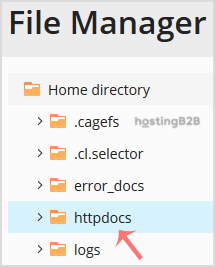
3. Under File Manager, click on httpdocs directory or any other directory where you wish to create your new file or directory.
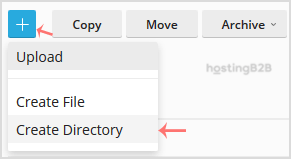
4. Click on the +Plus icon and then on Create Directory.
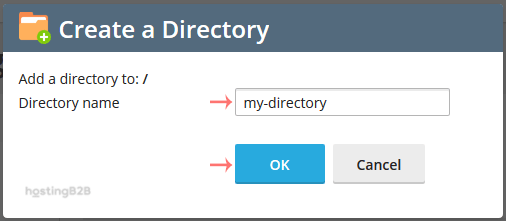
5. In the Directory Name field, enter your directory name such as my-directory. Then click OK.
How to create a new file such as home.html?
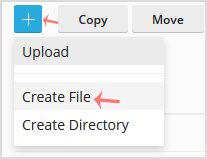
1. Click on the +Plus icon and then on Create File.
2. In the File name field, enter your filename, such as home.html. Then click Ok.
You now know how to create either a Directory or a file in Plesk’s File Manager.
Visit our blog for more knowledgebase articles !
The post Create a new directory or file in Plesk File Manager appeared first on HostingB2B.









