

Unwanted emails and a disorganized inbox can consume valuable time and introduce security risks. Taking control of your incoming mail is essential for productivity and peace of mind. This guide provides a complete tutorial on how to create user level email filters in cPanel. You will learn to set up custom rules that automatically manage messages, stop spam before it reaches your inbox, and keep your communications efficiently organized.
Accessing the Email Filter Management Area
Before you can create any rules, you first need to navigate to the correct section within your cPanel account. This area allows you to manage filters for each individual email address associated with your hosting plan. This ensures that rules for one user do not accidentally affect another.
- Log into your cPanel account.
- Navigate to the Email section and click the Email Filters icon.

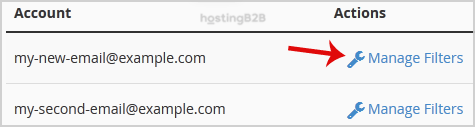
- In the Filters by Users list, find the email account you wish to configure. Click the Manage Filters link next to that account.


Tired of sorting through unwanted emails?

Take control of your inbox with custom email filters in cPanel.
View our plansCreating a Custom Email Filter Step by Step
Once you are in the management area for the correct email account, you can begin building your custom filter. The process involves naming the filter for easy identification, defining the criteria for matching an email, and choosing what action to take when a match is found.
- Click the Create a New Filter button to open the filter configuration interface.
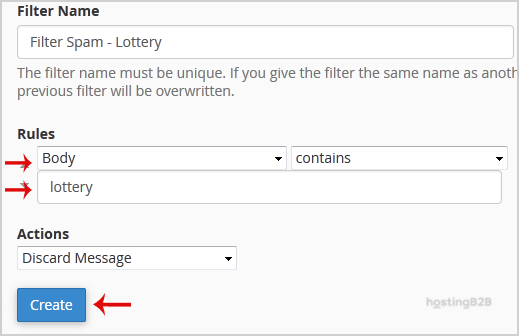
- In the Filter Name text box, enter a descriptive name. For example, “Block Unwanted Promotions” or “Archive Invoices”.

- Now, define the filter rules. This tells cPanel what to look for in an incoming email.
- In the first dropdown menu, select the part of the message to inspect. Common choices include From, Subject, or Body.
- In the second dropdown, choose an operator. Contains is a flexible option, but others like equals or begin with offer more precision.
- In the text box, enter the keyword, phrase, or email address you want the filter to match. For instance, to filter emails containing the word “Lottery” in the body, you would select Body, then contains, and type “Lottery”.
- Under the Actions section, select what should happen to a matched email.
- Discard Message permanently deletes the email with no notification. Use this action with extreme caution.
- Redirect to email forwards the message to another email address.
- Deliver to folder moves the message to a specific email folder to keep your inbox clean.
- After configuring your rule and action, click the Create button to save and activate the filter.
Practical Examples of Advanced Email Filter Rules
The real power of cPanel filters comes from combining rules and actions to automate your workflow. A simple spam filter is just the beginning. Below are a few examples of how you can use advanced cPanel email filter rules to improve your email management.
- Organize Financial Documents. Create a rule where if the Subject contains “Invoice”, the action is to Deliver to folder “/invoices”. This keeps all your financial records neatly filed away.
- Block a Specific Sender. If you are receiving unwanted mail from a specific address, set a rule where if From equals “[email protected]”, the action is to Discard Message.
- Forward Departmental Queries. You can set up a filter so that if To contain “[email protected]”, the action is to Redirect to email “[email protected]”.
Round-the-Clock Support
Our certified experts are always available to resolve issues, ensure compliance, and maintain performance. For more information, contact our experts!
Managing Your Existing Email Filters
Your email needs may change over time, requiring you to update your filters. cPanel makes it easy to modify or remove rules you no longer need. From the Manage Filters screen, you can see a list of all active filters for an account. Here you can choose to edit user level email filter settings or delete user level email filter rules entirely. Regularly reviewing your filters ensures your inbox stays optimized. For more robust, automated protection, you should also Enable Apache SpamAssassin in cPanel, which uses advanced algorithms to identify spam. For businesses requiring the highest level of security, our Business Email Hosting solutions provide enterprise-grade threat protection.
Frequently Asked Questions
User level filters, as described in this guide, apply only to a single specific email account. Global email filters apply to every email account on your cPanel hosting plan. You can learn how to create global email filter in cPanel for account-wide rules.
Yes. After adding your first rule, you can click the “+” button to add another condition. You can then specify whether the filter should match “and” (all rules must be true) or “or” (any rule can be true) conditions, allowing for highly specific filtering logic.
The best way to test a filter is to send an email from a different address (like a personal Gmail or Outlook account) that matches the criteria you set. For example, if your filter looks for the word “Test” in the subject, send an email with that subject and see if cPanel performs the correct action.
No. Email filters in cPanel run on incoming messages as they arrive at the server. They do not process emails that have already been delivered to your inbox or other folders.
If you specify a destination folder that does not exist in your email account, cPanel will automatically create it for you when the first email is filtered and delivered to it.









