
Managing email flow is a critical task for any business. Sometimes a global email filter that was once useful no longer serves its purpose or is causing unintended issues by blocking legitimate messages. This guide provides a direct and safe process to delete an account-level global email filter in cPanel, restoring normal email delivery across all accounts on your domain.
Understanding cPanel Global Filters
Before proceeding with deletion it is important to understand what this action does. An account-level or global email filter in cPanel applies a set of rules to all incoming emails for every email account under your hosting plan. This is a powerful tool for fighting spam or organizing mail across an entire organization. However if configured incorrectly it can also prevent important emails from reaching their destination. Deleting the filter removes these universal rules completely.
This is different from a user-level filter which only affects a single email address. If you need to remove rules for just one user you should delete a user-level email filter instead. For managing broader spam protection you might also consider alternatives like configuring more advanced tools. Many of our cPanel web hosting services come with powerful options built in.

How to Delete a Global Email Filter
Removing an global email filter is a straightforward process but it is permanent. Ensure you have backed up any complex filter rules you may wish to recreate later. Follow these steps carefully to remove the filter from your cPanel account.
- Navigate to Global Email Filtering
First log in to your cPanel account. From the main dashboard find the “Email” section and click on the “Global Email Filters” icon to proceed.
- Locate and Select the Filter
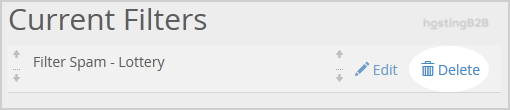
On the next screen you will see a section titled “Current Filters”. This area lists all the global email filters currently active on your account. Find the specific filter you wish to remove and click the “Delete” button located in the same row. - Confirm the Deletion Action
After clicking “Delete” cPanel will ask you to confirm your choice. This is a safety measure to prevent accidental removal. Click the “Delete Filter” button to permanently remove the selected filter and its associated rules.

Congratulations. You have successfully deleted a global email filter in cPanel. The rules will no longer be applied to incoming mail for any of your accounts.
Actions After Deleting a Filter
After you remove a cPanel email filter it is a good practice to monitor your email accounts to ensure messages are flowing as expected. If the filter was intended to stop spam you may notice an increase in unwanted messages. You can address this by setting up more targeted protection. Consider options like configuring an alternative spam management tool or if you need a more robust system explore our secure business email hosting solutions.
If you removed the filter to troubleshoot a problem you can now test if the issue is resolved. If you need to re-establish filtering rules you can always create a new global email filter with updated criteria.
Frequently Asked Questions
A global or account-level email filter is a set of rules in cPanel that automatically processes all incoming email for every email address on your hosting account. It can be used to discard spam redirect messages or pipe emails to a program.
When you delete an account-level filter the rules it contained are immediately and permanently removed. They will no longer be applied to any incoming emails for any account on your domain. Email delivery will revert to its default behavior.
No once a filter is deleted from cPanel it cannot be recovered. You must recreate it manually. It is a good practice to save a copy of any complex filter rules in a text file before deleting them if you think you might need them again.
No they are different. A global filter applies to all email accounts under your cPanel hosting. A user-level filter applies only to a single specific email address. Deleting a global filter does not affect any user-level filters you have configured.
cPanel offers other powerful tools for spam management. A highly effective option is to enable Apache SpamAssassin which uses a wide range of tests to identify and score spam. You can also create more specific user-level filters for individual accounts.









