
A step by step guide to help you Enable or disable php extensions using Cloudlinux selector in DirectAdmin. PHP extensions control which modules are available to your applications on our web hosting plans.
1. Log-in to your DirectAdmin account.
2. In the Extra Features section, click on the Select PHP version icon or type Select PHP in the navigation filter box. The option will appear. Click on it.


3. Click on the Extensions menu.
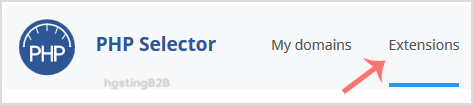
Note: If the Extensions page shows an error related to the native PHP version, change it to a non-native version first.
4. For enabling the extension, you will need to tick mark that option. If you wish to disable it, then unmark it, and it will be disabled.
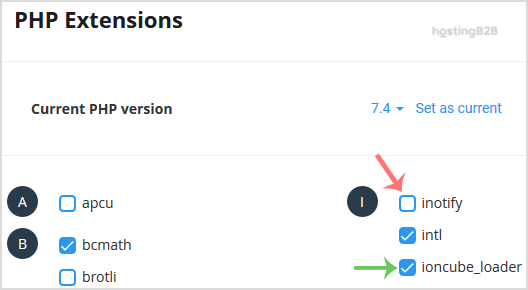
You have successfully learned how to enable or disable php extensions using Cloudlinux selector in DirectAdmin. For related PHP configuration, learn how to manage display_errors, configure allow_url_fopen, or change your PHP version in DirectAdmin.








