
Understanding your website’s traffic is fundamental to its success. Buried within your SiteWorx control panel is a powerful tool called Webalizer that provides fast and direct website traffic statistics based on your server logs. This guide shows you not only how to access Webalizer in just a few clicks but also how to interpret the essential data it provides to make informed decisions about your site.
What Is Webalizer and Why Use It
Webalizer is a web log analysis application that generates detailed reports on your website’s usage. Unlike client-side tools like Google Analytics that rely on JavaScript in the user’s browser, Webalizer directly processes the raw access logs on the server. This provides a different and often more direct perspective on activity, including traffic from search engine bots and other automated agents that JavaScript-based analytics might miss. It is a fast, reliable, and private way to get a baseline understanding of your site’s traffic patterns.
How to Access Webalizer in SiteWorx
Finding your website statistics is a straightforward process inside the SiteWorx control panel. Follow these three simple steps to open your Webalizer reports.

- Log Into Your SiteWorx Account
First, you need to sign into your account. You can typically do this by navigating to your domain name followed by port 2443. For example, you would use an address like www.example.com:2443/siteworx/. Enter your username and password to proceed. - Navigate to the Statistics Menu
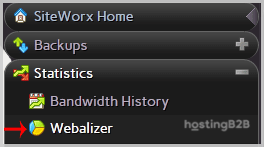
Once you are logged in, look for the main menu on the left side of the interface. Find and click on the Statistics menu item to expand its options. If it is already open, you will see the available reporting tools listed beneath it. - Click the Webalizer Option
Within the expanded Statistics section, you will see an icon and link for Webalizer. Click this option. Your complete Webalizer Statistics report will open in a new browser window or tab, ready for you to review.
Interpreting Key Webalizer Metrics
Your Webalizer report contains a wealth of data presented in tables and graphs. Understanding a few key terms is essential to making sense of these website traffic reports.
Hits Files Pages and Visits
These terms can be confusing but represent different levels of activity. A Hit is any request made to the server. A single page load can generate many hits for images, scripts, and style sheets. Files represent the total number of hits that result in something being sent back to the user. Pages are a more useful metric, representing requests for actual HTML documents. Finally, a Visit occurs when a remote user requests pages from your site for the first time.
Unique Visitors and Referrers
Unique Visitors or Unique Sites represents the number of distinct IP addresses that made requests to your server. This gives you an estimate of your audience size. The Referrers report is highly valuable, as it shows which external websites are sending traffic to yours. This can help you identify successful marketing campaigns or partnerships.
Taking Action on Your Webalizer Data
Analyzing statistics is only useful if it leads to improvements. High bandwidth usage and visitor counts are great signs of growth, but they also mean you need to ensure your infrastructure can handle the load. Use your Webalizer data to estimate hosting resource needs and plan for the future. If your traffic consistently pushes the limits of your current plan, it may be time to upgrade to scalable VPS hosting to maintain excellent performance. Understanding this data is a key part of how you can monitor server performance and its impact on website performance and SEO.
Frequently Asked Questions
Webalizer reports are typically generated on a scheduled basis by the server, usually once every 24 hours. This means the data you see reflects the previous day’s activity and is not a real-time view.
These tools measure traffic differently. Webalizer reads server logs, capturing every request including bots. Google Analytics uses client-side JavaScript, which only runs in browsers and can be blocked by users. Each provides a valid but distinct perspective on your traffic.
The user agent is a string of text that identifies the browser or bot making a request to the server. The User Agents report in Webalizer shows you which browsers your human visitors use and which search engine crawlers are indexing your site.
Webalizer does not have a built-in export function for formats like CSV or PDF. However, the reports are standard HTML pages, so you can save the page directly from your browser or print it to a PDF file for offline viewing and archiving.
While not a dedicated SEO platform, Webalizer provides useful data for SEO. You can see which pages are most popular, identify broken links from the 404 error report, and analyze which search terms are bringing users to your site from the Referrers report.









