
Creating a subdomain in DirectAdmin is a straightforward way to organize your website, launch a staging environment, or add distinct sections like a blog or store. This complete DirectAdmin subdomain management guide provides a full walkthrough of the process. We will cover the creation steps, what to do next with your new subdomain’s files, and how to manage your configuration.
A Quick Guide to Adding a Subdomain
The DirectAdmin control panel makes subdomain creation a simple task that takes only a few moments. Follow these precise steps to configure a new subdomain for your primary domain name. This process gives you a powerful tool for structuring your web presence without needing a new domain.
- Log in to your DirectAdmin Account
Begin by securely logging into your DirectAdmin dashboard using your credentials. This is the central hub for all your web hosting management tasks. - Navigate to Subdomain Management
Once logged in, locate the Account Manager section. Here you will find the Subdomain Management icon. You can also type “Subdomain” into the navigation filter box at the top of the page to find the option instantly. Click on it to proceed.
- Initiate Subdomain Creation
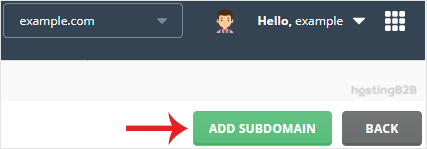
On the Subdomain Management page, look to the top right corner for the Add Subdomain button. Click this button to open the creation form. - Define Your Subdomain Name
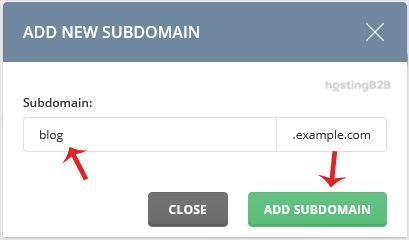
In the “Subdomain” field, enter the name you wish to create. This is the prefix that will appear before your main domain name. For example, to create blog.yourdomain.com, you would simply type blog into this box. - Confirm and Add the Subdomain
After entering the name, click the final Add Subdomain button. DirectAdmin will now automatically configure the necessary DNS records and directory structure for your new subdomain. You will see a confirmation message once it is complete.

What to Do After Creating Your Subdomain
After you create a subdomain in DirectAdmin, the next logical step is to upload your website’s content. DirectAdmin simplifies this by automatically creating a dedicated directory for your new subdomain’s files. You can find this new folder inside your primary domain’s `public_html` directory. The typical file path for the DirectAdmin file manager subdomain location is /domains/yourdomain.com/public_html/subdomain_name. You can access this location using the File Manager within the DirectAdmin control panel or via an FTP client to begin uploading your site files.

Managing and Removing a Subdomain
Your website’s structure may evolve, requiring you to update or remove subdomains that are no longer needed. The Subdomain Management screen provides a centralized list of all your active subdomains. From here, you can select any subdomain to delete it. This action helps keep your hosting account organized and secure. For a complete walkthrough, please see our guide on how to remove a subdomain in DirectAdmin. As a best practice before making any structural changes, we always recommend you generate a full backup of your DirectAdmin Account to safeguard your data.
You now have the knowledge to create and manage subdomains effectively. This feature is essential for scaling your online presence and keeping your projects organized. If you need a robust platform for your websites, explore our high-performance Cyprus Web Hosting solutions.
Frequently Asked Questions
In most cases, a new subdomain becomes active within a few minutes. However, it can sometimes take a few hours for the DNS changes to propagate fully across the internet. If it is not working immediately, please allow some time before troubleshooting.
Your subdomain’s files are stored in a dedicated folder inside your main domain’s directory. The path is typically public_html/subdomain or more specifically /domains/yourdomain.com/public_html/subdomain.
Yes, you can install WordPress or any other application on a subdomain just as you would on a primary domain. Application installers like Softaculous will allow you to select the subdomain from a dropdown menu during the setup process.
The number of subdomains you can create is determined by your specific web hosting plan. Many of our plans offer a generous number of subdomains, and some even provide an unlimited amount. Please check your plan’s details for exact figures.
A subdomain creates a new, partitioned section of your website, such as blog.example.com. In contrast, a domain alias points a completely different domain name to your existing website content. If you need to point another domain to your site, learn how to create a domain alias.









