

Your Web Host Manager (WHM) root password is the master key to your server environment. Keeping it secure is a critical part of server administration. This guide provides a clear step-by-step process to change your WHM root password directly from the interface and covers essential security practices to safeguard your infrastructure.
Why Regularly Changing Your WHM Root Password Matters
The root user has complete administrative control over your server. This level of access allows for system-wide changes including creating and managing hosting accounts installing software and configuring security settings. Because the root account is so powerful protecting it from unauthorized access is paramount for maintaining the integrity and stability of your entire server. Regularly updating the password is a fundamental security measure that helps prevent breaches.
How to Change Your WHM Root Password Step-by-Step
Changing your root password from within the WHM interface is a straightforward process. Follow these four steps to update your credentials and enhance your server’s security. Ensure you have your current login details ready before you begin.

- Log into Your WHM Account
First you must access Web Host Manager (WHM) using your existing root username and password. This is the essential first step to gain access to the administrative dashboard. - Locate the Change Root Password Tool
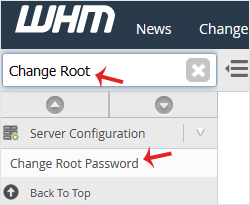
Once logged in look for the Server Configuration section in the left-hand navigation menu. Click it to expand the options then select Change Root Password. For quicker navigation you can type “Change Root” into the search box and the option will appear instantly.
- Enter or Generate Your New Password
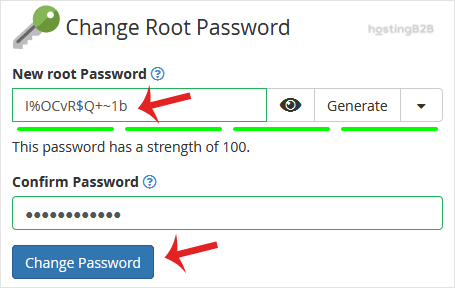
On the main screen you will see the fields for setting your new password. You can either type a new password manually or use the Password Generator button. We highly recommend using the generator to create a long complex and random password that is difficult to guess.
Important Note: After entering or generating the password copy it immediately and store it in a secure location such as a trusted password manager. - Confirm the Password Change
With the new password entered click the Change Password button. Your WHM root password will be updated immediately. You will need to use this new password for your next root login session.
Best Practices for a Secure WHM Root Password
A strong password is your first line of defense. When performing a WHM root account password reset always adhere to security best practices. A weak password can expose your entire server to risk. For comprehensive protection consider our Managed IT Services where our experts handle these critical tasks for you.
- Complexity is Key Combine uppercase letters lowercase letters numbers and special characters. Avoid dictionary words or personal information.
- Length Matters Aim for a password that is at least 16 characters long. The longer it is the more secure it becomes.
- Use the Generator The built-in WHM password generator is an excellent tool for creating highly secure passwords that are nearly impossible to crack with brute-force methods.
- Be Unique Never reuse passwords across different services. If another service is compromised a reused password could give attackers access to your server.
What to Do if You Cannot Access WHM
If you have lost your root password and cannot log into WHM you cannot use the interface to reset it. In this situation the primary recovery method is to perform a WHM root password reset via SSH. This requires command-line access to your server. If you have a Dedicated Server Hosting plan you typically have this level of access. The process involves logging in as a user with sufficient privileges and using the `passwd` command to set a new password for the root user.
Next Steps After Securing Your Root Account
Changing your password is a great step but server security is an ongoing process. To further harden your server we strongly recommend you enable two-factor authentication (2FA). This adds a critical second layer of security making it much harder for an unauthorized user to gain access even if they manage to steal your password. For more advanced strategies review our guide on how to secure your dedicated server.
Frequently Asked Questions
For high-security environments it is a good practice to change your root password every 90 days. You should also change it immediately if you suspect any unauthorized activity or if an administrator with access leaves your organization.
The root password provides complete administrative access to the entire server via WHM. A cPanel password provides access to a single hosting account with limited privileges and cannot be used to manage other accounts or server-wide settings.
If you do not have SSH access and have lost your root password you will need to contact your hosting provider. Our support team can assist with a secure password reset procedure to help you regain access to your server.
A compromised root account gives an attacker full control over your server. They could steal data delete websites install malicious software or use your server to attack others. If you suspect a compromise change your password immediately and conduct a full security audit.
Yes the WHM password generator is designed to create strong cryptographically random passwords. It is one of the most secure ways to generate a new password because it avoids human patterns and biases making the output highly resistant to guessing or brute-force attacks.








