
Automating repetitive server tasks is essential for efficient website management. Plesk allows you to achieve this by creating scheduled tasks, widely known as cron jobs. This guide provides a clear, step-by-step process to help you set up and configure cron jobs in Plesk, enabling you to automate everything from maintenance scripts to custom backups.
Creating Your Scheduled Task in Plesk
This process involves navigating through the Plesk interface to the task scheduler and initiating a new task. Follow these initial steps carefully to access the main configuration screen where you will define what your task does and when it runs.
- Log In to Your Plesk Account
First, you need to access your control panel. Log in to your Plesk account using your secure credentials. The URL is typically your domain name followed by port 8443. - Navigate to Scheduled Tasks
Once logged in, look at the right-hand sidebar menu. Find and click on the Scheduled Tasks option to open the task management interface.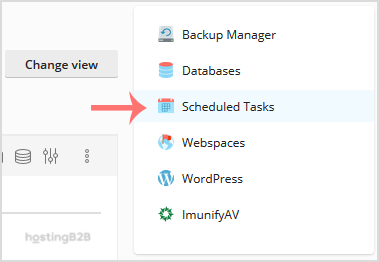
- Add a New Task
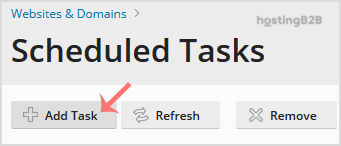
Inside the Scheduled Tasks screen, you will see a list of any existing tasks. To create a new one, click the Add Task button.
Configuring Task Settings in Detail
This is the most critical part of the setup. Properly configuring these options ensures your automated script runs correctly and at the desired interval. We will explore each setting to provide complete clarity on your Plesk cron job setup.

- Define the Task Parameters
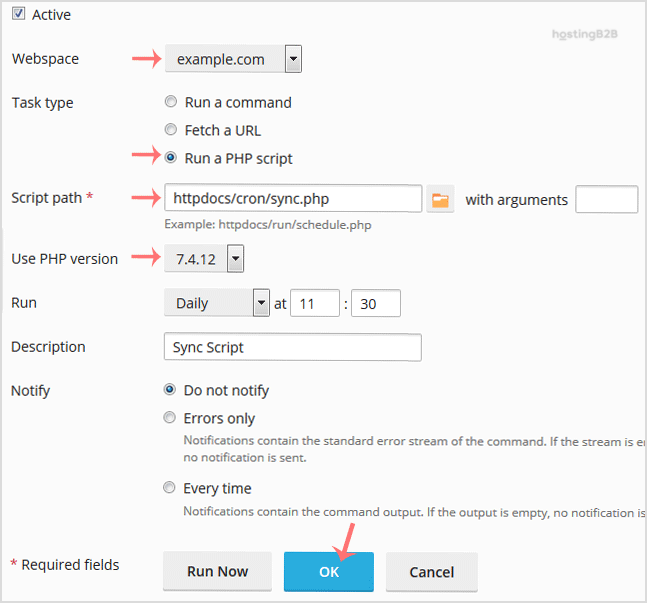
On the “Add a Task” screen, you must fill out several fields to define the task’s behavior. Let’s break down each option.- Webspace: If you manage multiple domains on your account, select the correct one from this drop-down menu. The task will run under the authority of the system user associated with that webspace.
- Task Type: Choose the type of action you want to automate. You have three primary options.
- Run a command: Executes a shell command on the server. This is ideal for running system scripts, like a database backup. For example /usr/bin/php /var/www/vhosts/yourdomain.com/httpdocs/cron.php.
- Fetch a URL: Makes an HTTP GET request to a specific URL. This is useful for triggering web-based scripts.
- Run a PHP script: Directly executes a PHP script located within your webspace, without needing to use the command line interpreter.
- Command or Script Path: Enter the specific command, URL, or path to your script here. The input required depends directly on the Task Type you selected. Ensure your paths are correct to avoid errors.
- Run: This section defines the schedule. You can choose from presets like Hourly, Daily, Weekly, or Monthly. For more control, select Cron style and enter a standard cron expression. For example, 0 2 * * * would run the task every day at 2 AM.
- Notify: You can choose to receive an email notification every time the task runs, only when it produces an error, or not at all. Selecting “Errors only” is a common best practice to avoid cluttering your inbox while staying informed of problems.
Managing and Verifying Your Tasks
After configuring your task, the final step is to save it and confirm it works as expected. Plesk provides simple tools for testing and ongoing management, ensuring your automations remain reliable.
- Save and Run the Task
After filling in all the details, click OK to save the scheduled task. Your new cron job will now appear in the list. To ensure it works correctly without waiting for the scheduled time, select the task from the list and click Run Now. This executes the task immediately and helps you verify its functionality. Once you create a task, you can always return to this screen to edit or delete scheduled tasks as your needs change.
For complex automation that requires more resources, consider upgrading to our powerful VPS Hosting solutions, which provide greater control and performance for your scripts.
Frequently Asked Questions
A cron job is a time-based job scheduler in Unix-like computer operating systems. Users who set up and maintain software environments use cron to schedule jobs (commands or shell scripts) to run periodically at fixed times, dates, or intervals.
If your command or script produces any output, Plesk will capture it. You can configure the “Notify” option to have this output emailed to you. This is very helpful for debugging scripts that are not working as expected.
“Run a command” executes your script via the server’s command-line interpreter, requiring you to specify the full path to the PHP binary (e.g., /usr/bin/php). “Run a PHP script” is a Plesk-specific convenience that runs the script directly using the domain’s configured PHP handler, which can be simpler.
Common reasons for failure include incorrect paths to the script, file permission issues, or errors within the script itself. Use the “Run Now” button and check the notification emails for error messages to troubleshoot the problem effectively.









