
You can delete a database from the DirectAdmin control panel, but we recommend you first download a backup of the database before removing it. For automated backup protection, consider Acronis Cyber Protect.
1. First log in to your DirectAdmin Account.
2. Then in the Account Manager section, click on the MySQL Management Icon or type MySQL Management in the navigation filter box. The option appears. Click on it.

3. After that under database text, select the database. You can select multiple databases.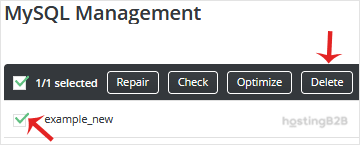
4. Finally click the Delete button, and a new window opens, asking you for confirmation. Click again on Delete to remove the database.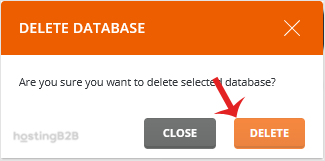
You have successfully deleted a database in DirectAdmin. If you need to create a new database, see our guide on how to create a database in DirectAdmin. All database management features are included with our web hosting plans.








