

What Is DirectAdmin
DirectAdmin is a commercial web hosting control panel known for its speed, stability, and user-friendly design. It allows administrators to manage web servers and simplifies tasks for end-users. It is a popular choice for selling shared and reseller hosting accounts, offering a robust feature set for managing domains, emails, databases, and files without requiring deep command-line knowledge.
Pre-Installation Requirements
Before you begin the DirectAdmin installation, it is important to ensure your server meets the necessary criteria. Proper preparation prevents common errors and streamlines the setup process. You must have a clean system to avoid conflicts with existing software.
- Operating System: A fresh installation of CentOS 7 or CentOS 8 is required. The script will not work on a server with pre-existing web services or control panels installed.
- Server Access: You need full root access to your VPS/Server via SSH. All commands must be executed by the root user.
- System Specifications: While DirectAdmin is lightweight, ensure your server meets minimum resource requirements for your intended workload.
- Firewall Configuration: The DirectAdmin panel operates on port 2222. You must configure your firewall to allow incoming TCP traffic on this port to access the web interface after installation.
Step-by-Step DirectAdmin Installation Guide
This section details the commands needed to download and execute the automated installation script. The process is straightforward and handles all dependencies and core component setups for you. Follow these steps carefully to complete the installation.

Step 1. Connect to Your Server and Run the Setup Script
First, log in to your server as the root user using an SSH client. Once connected, you will execute a series of commands to download the setup script, make it executable, and run it in automated mode.
Enter the following commands one by one:
wget -O setup.sh https://download.directadmin.com/setup.sh
chmod 755 setup.sh
./setup.sh auto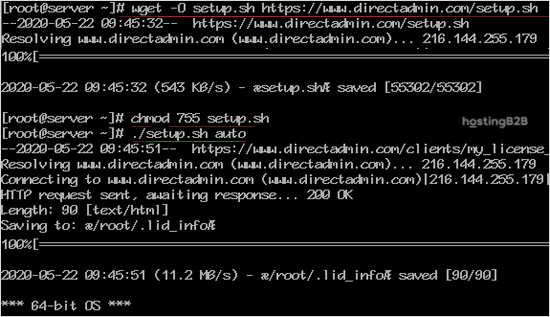
The wget command downloads the official script, chmod sets the correct permissions, and ./setup.sh auto starts the installation. The process typically takes between 20 and 30 minutes to complete as it installs and configures services like Apache, PHP, and MariaDB.
Step 2. Access Your DirectAdmin Control Panel
After the installation script finishes, it will display your login credentials directly in the terminal window. This output includes the administrator username, password, and the login URL. Be sure to copy this information and store it in a secure location.
You can now access your new control panel by navigating to the provided URL in your web browser. The URL will follow this format, where you replace “IP-Address” with your server’s actual IP address.
http://IP-Address:2222With these steps, you have successfully completed the DirectAdmin installation on your CentOS server.
Initial Post-Installation Steps
Once you have logged into DirectAdmin for the first time, there are a few recommended actions. These initial steps help secure your server and prepare it for hosting websites. Proper DirectAdmin configuration is key to a stable environment.
- Change the Admin Password: Your first action should be to change the default administrator password to something unique and strong.
- Review Service Configuration: Check the status of key services like Apache, DNS, and the mail server to ensure they are running correctly.
- Set Up Backups: It is highly recommended to configure a DirectAdmin account backup schedule to protect your data.
Troubleshooting Common Installation Issues
While the automated script is reliable, you might encounter issues. The most common problem is a firewall blocking access to port 2222. If you cannot reach the login page, double-check your server’s firewall rules. If the script fails, review the on-screen error messages, as they often point to network issues or an unsupported OS version.
Frequently Asked Questions
DirectAdmin is a graphical web hosting control panel used to manage servers and websites. It simplifies tasks like creating email accounts, managing domains, setting up databases, and administering user accounts for shared and reseller hosting.
No, you should not. The DirectAdmin installation script requires a fresh, clean operating system. Installing it on a server with existing data or configurations can lead to conflicts and data loss. Always start with a newly provisioned server.
Your license key and client ID are typically provided by DirectAdmin or your hosting provider upon purchase. During the automated installation, the script handles licensing, but you may need this information for manual setups or support requests.
After a successful installation, the default administrator username is ‘admin’. The password is automatically generated by the setup script and displayed on-screen once the process is complete. You should change this password immediately after your first login.
No, DirectAdmin is a commercial product and requires a paid license to use. It offers various pricing tiers based on the number of accounts and domains you need to manage.









