

Jamroom is a powerful content management system designed for building community websites and social networks. Installing it is a straightforward process when you use the Softaculous apps installer inside cPanel. This guide provides a complete Jamroom installation tutorial, walking you through every step from login to final setup, ensuring a smooth and secure deployment on your cPanel Web Hosting account.
Prerequisites for Jamroom Installation
Before you begin the installation process, ensure you have everything you need for a successful setup. Proper preparation prevents common errors and saves you time. You will need valid login credentials for your cPanel account. If you have forgotten your password, you should reset your cPanel password before proceeding.
Step-by-Step Jamroom Installation Guide
This Jamroom installation guide uses the Softaculous App Installer, a tool that automates application setups. Follow these instructions carefully to configure and deploy your new Jamroom website.

- Log into your cPanel account.
- Navigate to the Software section and click the Softaculous Apps Installer icon. This action will redirect you to the main Softaculous dashboard.

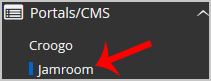
- In the navigation menu on the left side of the screen, find the Portals CMS category. Click it to expand the list of available applications.
- From the expanded list, click the Jamroom link. This will take you to the Jamroom overview page within Softaculous.

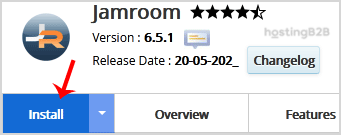
- Click the Install Now button to begin the configuration process.

- Complete the required fields in the Software Setup section.
- Choose Installation URL Select the correct protocol (http or https) and domain name from the dropdown menus. In the In Directory field, you can specify a folder name if you want to install Jamroom in a subdirectory like example.com/community. To install it on your main domain, leave this field empty.
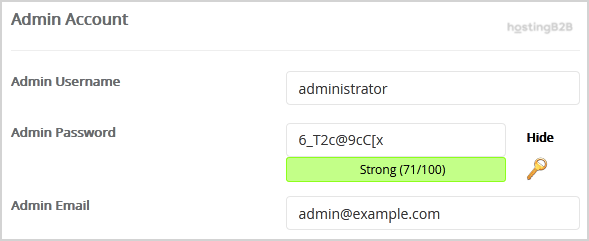
- Configure your administrator credentials under the Admin Account section.
- Admin Username Enter a unique username for your Jamroom administrator account. For security, avoid using common names like “admin” or “administrator”.
- Admin Password Create a strong, unique password. Use a combination of uppercase letters, lowercase letters, numbers, and symbols.
- Admin Email Provide a valid email address. This address is essential for password resets and receiving important site notifications.
Note: It is critical to copy your new admin username and password and store them in a secure location. You will need these Jamroom admin login details to access your website’s control panel after installation. We highly recommend you secure your admin credentials further with additional security measures.
- Review the Advanced Options section.
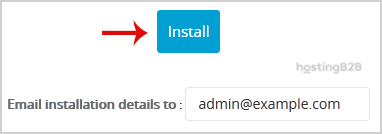
In most cases, you can leave these settings at their default values. Softaculous will automatically create and configure the database for you. You can change the database name or set up automated backups here, but be aware that frequent backups can consume significant disk space. - Scroll to the bottom of the page and click the final Install button. Softaculous will now validate your settings and install the Jamroom files on your server.


Verifying Your Installation and First Steps
Once the installation is complete, you will see a success message that includes links to your new Jamroom website and its administrative backend. Click the administrative URL and use the username and password you created during step 7 to log in. You can now begin configuring your site’s modules, themes, and community features from the Jamroom dashboard.
Troubleshooting Common Installation Issues
While the Softaculous installer is highly reliable, you might occasionally encounter an issue. If the installation fails, check for error messages related to file permissions or database connection problems. Ensure the target directory is empty if you are not installing over an existing site. If problems persist, reviewing the server’s error logs can often provide more specific details about the cause of the failure.
Frequently Asked Questions
Jamroom is a Content Management System (CMS) specifically built for creating online communities, social networks, and membership-based websites. It offers a modular framework that allows you to add features like profiles, forums, media galleries, and more.
No, using the Softaculous app installer in cPanel makes the process very simple. This guide requires no coding or command-line knowledge. You only need to fill in basic information like your domain name and desired admin credentials.
Yes. During the setup process in Softaculous, you will see an “In Directory” field. Simply enter the name of the folder where you want to install Jamroom, and it will be accessible at yourdomain.com/foldername.
You can use the “Forgot Password” feature on the Jamroom login page. A password reset link will be sent to the administrator email address you configured during the installation.
No, you can also install Jamroom manually by uploading its files via FTP and creating a database. However, the Softaculous method is significantly faster, easier, and less prone to error, making it the recommended approach for most users.









