

Deploying a new Content Management System should be a straightforward process. This guide provides a complete walkthrough to help you install liveSite using the Softaculous App Installer in your cPanel account. We will cover everything from initial login to final configuration, ensuring you have a smooth and secure setup for your website.
Prerequisites for Installation
Before you begin the liveSite installation process, please ensure you have the following ready. Proper preparation will help prevent common errors and make the setup much faster. You will need active credentials for your cPanel account, which is a standard feature included with our Secure Web Hosting plans.
Step-by-Step Installation Guide
Follow these detailed instructions to install the liveSite CMS on your hosting account. Each step includes explanations to help you understand the configuration choices you are making.

- Log into your cPanel Account
Begin by accessing your cPanel control panel. This is the main hub for managing your hosting environment. - Locate the Softaculous App Installer
In the main cPanel dashboard, find the “Software” section. Click on the Softaculous App Installer icon to open the application library.
- Navigate to the Softaculous Panel
After clicking the icon, cPanel will redirect you to the main Softaculous interface where you can manage hundreds of applications. - Find the liveSite Application
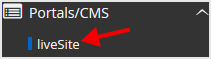
On the left-hand navigation menu, find the “Portal/CMS” category. Click it to expand the list of available content management systems, then select the “liveSite” link.
- Initiate the Installation
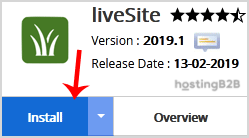
On the liveSite overview page, click the “Install” button to proceed to the main configuration screen.
- Configure Software Setup Details
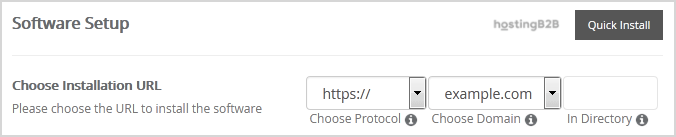
This section is crucial for defining where and how liveSite is installed. Pay close attention to each field.- Choose Installation URL Select the correct protocol (http or https) and the domain name for your installation. In the “In Directory” field, you can specify a subfolder. For example, entering ‘blog’ would install liveSite at yourdomain.com/blog. To install it on your main domain, leave this field empty.

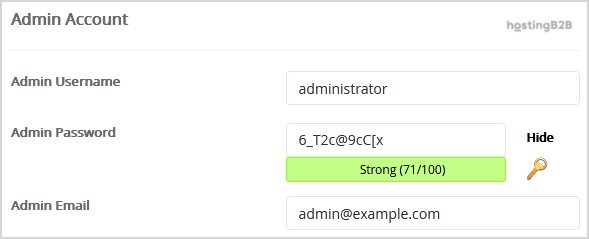
- Set Administrator Username Create a unique username for your new liveSite administrator account. For security, avoid common names like “admin” or “administrator”.
- Create a Strong Administrator Password Enter a secure and complex password. A strong password is your first line of defense against unauthorized access.
- Enter Administrator Email Provide a valid email address. This address will be used for password resets and important notifications from your liveSite installation.

Important Note Be sure to copy your new administrator username and password and store them in a secure location. You will need these credentials to access the liveSite admin area after the installation is complete.
- Choose Installation URL Select the correct protocol (http or https) and the domain name for your installation. In the “In Directory” field, you can specify a subfolder. For example, entering ‘blog’ would install liveSite at yourdomain.com/blog. To install it on your main domain, leave this field empty.
- Review Advanced Options
This section allows you to customize the database name or configure automated backups. While you can typically leave these at their default settings, be aware that frequent automated backups can consume a significant amount of disk space. Adjust these settings only if you have a specific requirement. - Complete the Installation
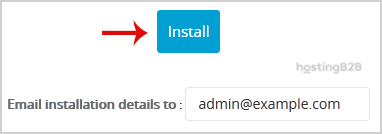
Finally, scroll to the bottom of the page and click the “Install” button. Softaculous will now validate your settings and install the liveSite files and database on your server. Once finished, you will see a confirmation message.

Verifying Your liveSite Installation
After the confirmation screen appears, your liveSite installation is complete. You can now visit the installation URL you configured. To manage your new website, use the administrator username and password you saved to access the liveSite admin login page. It is also a good time to further secure your cPanel account to protect your entire hosting environment.
Troubleshooting Common Installation Issues
Occasionally, an installation may encounter an issue. If you receive an error message, check for incorrect database details in the advanced options or file permission problems in the target directory. If you cannot resolve the issue, our expert technical support team is available to assist you.
Frequently Asked Questions
liveSite is a Content Management System (CMS) that allows you to build and manage websites. It provides tools for creating pages, managing users, and extending functionality.
Softaculous is an app installer that automates the installation of web applications. It simplifies the process by handling file uploads, database creation, and basic configuration, saving you time and reducing the risk of manual errors.
Yes. During the “Software Setup” step, you can specify a directory name in the “In Directory” field. This will install liveSite in a subfolder of your main domain, such as yourdomain.com/livesite.
If you forget your password, you can typically use the “Forgot Password” feature on the liveSite admin login page. This will send a reset link to the administrator email address you configured during installation.
For most users, the default advanced options are sufficient. You should only change them if you have a specific need to customize the database name, table prefix, or automated backup settings for your liveSite installation.









