

Launching a new blog is an exciting step, and using the right tools can make the process seamless. Serendipity is a powerful and flexible PHP-based blogging platform perfect for personal and professional use. This guide provides a complete walkthrough to help you install Serendipity directly from your cPanel account using the popular Softaculous one-click installer. Follow these simple steps to get your new blog online quickly and securely.
Step-by-Step Serendipity Installation Guide
The Softaculous App Installer simplifies software deployment into a guided process. Before you begin, ensure you have access to your cPanel web hosting account credentials. Once you are ready, follow the instructions below.
- Log into your cPanel account.
- Navigate to the Software section and click the Softaculous Apps Installer icon. This action will redirect you to the main Softaculous dashboard.

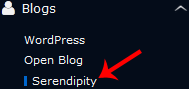
- In the navigation panel on the left side of the screen, find and click on the Blogs category. A list of available blogging applications will appear.
- From the list, select the Serendipity link to open its installation overview page.
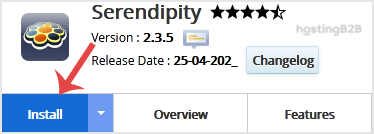
- Click the Install button to begin the setup process.
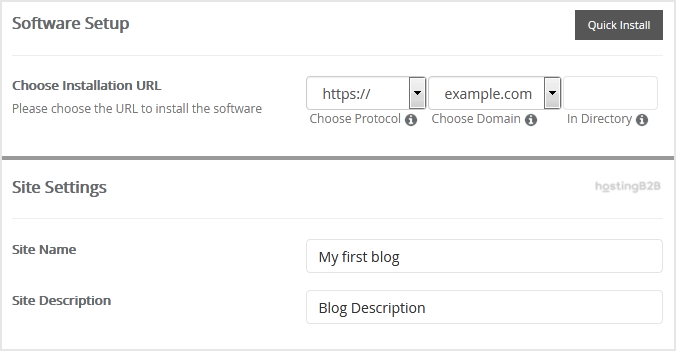
- Under the Software Setup section, you must define the installation URL. This is a critical step that determines where your blog will be accessible.
- Choose Installation URL Select the correct protocol (http or https) and your domain name from the dropdown menus.
- In Directory This field is optional. If you want your blog to be at a specific path like example.com/blog, enter blog here. To install it on your main domain (example.com), leave this field empty.
- Next, configure your website’s identity under the Site Settings field.
- Site Name Enter the name you want for your website, for example My First Blog.
- Site Description Provide a brief description of your site’s purpose.
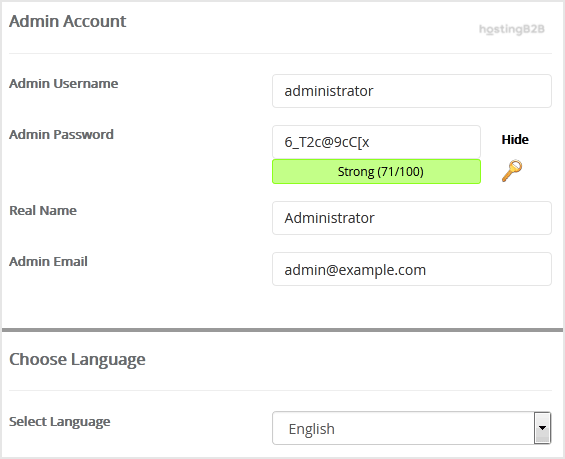
- In the Admin Account section, create your login credentials. For security, it is vital to use unique and strong details here.
- Admin Username Choose a unique username. Avoid common names like “admin” or “administrator” to enhance security.
- Admin Password Create a strong admin password containing a mix of letters, numbers, and symbols.
- Real Name You can leave this as the default or enter your actual name.
- Admin Email Enter a valid email address. This will be used for notifications and password resets. If needed, you can learn how to configure an Admin Email in cPanel.
Important Note Be sure to copy your new admin username and password and store them in a secure location. You will need them to access your Serendipity dashboard.
- Under Choose Language, you can select the default language for your Serendipity blog. English is selected by default.

- Review the Advanced Options section. You can generally leave these settings at their default values unless you have a specific need to change the database name or automated backup settings. Be aware that frequent backups can consume significant disk space.
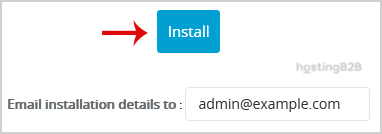
- Finally, scroll to the bottom of the page and click the Install button. Softaculous will now validate your settings and complete the installation.

Post-Installation Checklist What to Do Next
Congratulations, you have successfully installed Serendipity. Once the installation process is complete, you will see a confirmation page with links to your new blog’s homepage and administrative dashboard. Your immediate next step should be to log into the admin area using the credentials you created in step 8. From there, you can start customizing your site’s appearance, creating content, and exploring the available plugins and themes.

Frequently Asked Questions
Serendipity is an open-source PHP-powered blog engine and weblog application. It is designed for ease of use and offers robust features for both casual bloggers and experienced webmasters, including a powerful plugin and theme architecture.
Yes. During the installation process in Softaculous (Step 6), you can specify a directory name in the “In Directory” field. This will install Serendipity at yourdomain.com/directory-name, leaving your main domain untouched.
If the Softaculous installation fails, it will typically provide an error message explaining the issue. Common problems include incorrect directory permissions or database connection issues. Review the error, correct any configuration mistakes, and try the installation again. If the problem persists, contact our support team for assistance.
After logging into your Serendipity admin dashboard, you can manage themes and styles. You can install new themes to completely change the look and feel of your website or modify the existing theme’s settings to better match your brand.
Absolutely. Softaculous supports hundreds of applications. For example, you can also use it to install other blogging platforms like WordPress with just a few clicks, giving you the flexibility to choose the best software for your project.









