

Looking for a straightforward way to get the sNews CMS running on your website? This sNews CMS installation guide provides a complete walkthrough. Using the Softaculous app installer inside your cPanel account streamlines the entire process, saving you time and preventing common configuration errors. We will guide you through every step from logging in to securing your new installation, ensuring a smooth and successful setup.
Preparing for Your sNews Installation
Before you begin, ensure you have access to your cPanel account credentials. This process uses the Softaculous auto-installer, which is a standard feature in our cPanel Web Hosting solutions. No advanced technical knowledge is required, but having your desired site name and administrator email address ready will make the process even faster.
Step-by-Step sNews Installation Guide
This section details the exact procedure for installing sNews. Follow these steps carefully to configure your new CMS correctly and build a solid foundation for your website.

1. Log into cPanel and Find Softaculous
First, log into your cPanel account. Once you are on the main dashboard, navigate to the ‘Software’ section and click the ‘Softaculous App Installer’ icon. This action will redirect you to the main Softaculous panel where you can manage hundreds of applications.

2. Locate the sNews Application
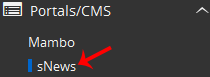
In the Softaculous panel, look at the vertical menu on the left side of your screen. Find and expand the ‘Portal/CMS’ category. A list of content management systems will appear. Click on the ‘sNews’ link from this list to open its overview page.
3. Initiate the Installation
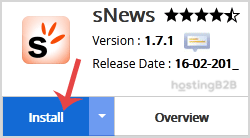
On the sNews overview page, you will see details about the application and its current version. Click the prominent ‘Install’ button to proceed to the main configuration screen.
4. Configure Software Setup Options
This is a critical step where you define where and how sNews will be installed. Pay close attention to these fields to avoid issues later.
- Choose Installation URL Select the correct protocol (http or https) and the domain name for your installation. We strongly recommend using https for better security.
- In Directory This field determines the path for your website. To install sNews on your main domain (e.g. example.com), you must leave this field empty. To install it in a subfolder (e.g. example.com/news), enter the desired directory name here.
5. Define Your Site Settings
Next, provide the basic information that identifies your website to visitors and search engines.
- Site Name Enter the name you want for your website. This will be visible to your visitors in places like the browser tab.
- Site Description Add a brief description of your site’s purpose or a tagline.

6. Create Your Administrator Account
Here you will set up the login credentials for managing your sNews website. It is vital to use strong and unique details to safeguard your site from unauthorized access.
- Admin Username Choose a unique username. For security purposes, you should avoid common names like ‘admin’ or ‘administrator’.
- Admin Password Create a strong, complex password. A good password uses a mix of upper and lower case letters, numbers, and symbols.
- Admin Email Enter a valid email address that you check regularly. This address will be used for password resets and other important notifications.
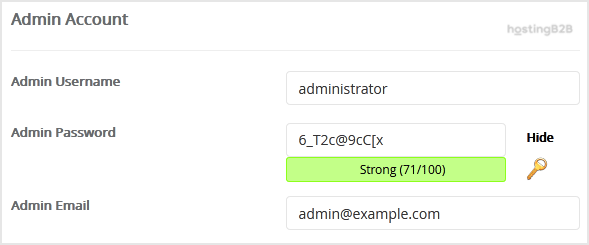
Important Note Be sure to copy your new admin username and password and store them in a secure location. You will need these credentials to access the sNews admin dashboard after installation is complete.
7. Review Advanced Options
You can expand the ‘Advanced Options’ section to customize the database name or configure automated backups. For most users, the default settings are sufficient. However, be aware that frequent automated backups can consume significant disk space. You can learn more about manual database configuration in cPanel if you need more granular control.
8. Complete the Installation
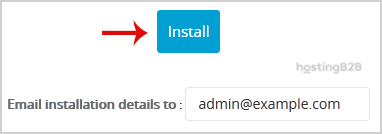
After reviewing all your settings for accuracy, scroll to the bottom of the page and click the final ‘Install’ button. Softaculous will now validate the information and install the sNews files and database on your server. This process usually takes less than a minute to finish.
Once completed, you will see a success message confirming that sNews has been installed successfully.
Essential First Steps After Installation
Congratulations, you have successfully deployed sNews. Your work is not finished yet. Taking a few immediate steps will ensure your site is secure and ready for you to add content.
First, use the administrative URL provided on the installation success page to log into your new sNews dashboard. Use the admin username and password you created during the setup process. Once logged in, take a moment to explore the interface and confirm that your site settings are correct. We also highly recommend you secure your cPanel account with 2FA to add an extra layer of protection to your entire hosting environment.
Frequently Asked Questions
sNews is a lightweight and simple content management system (CMS) designed for creating and managing small to medium-sized websites. It is known for its ease of use and minimal server resource requirements.
Yes. During the installation setup in Softaculous, you can specify a directory name in the ‘In Directory’ field. This will install sNews in a subfolder of your main domain, such as yourdomain.com/blog.
If you forget your password, you can typically use the ‘Forgot Password’ feature on the sNews admin login page. This will send a reset link to the administrator email address you configured during installation.
The Softaculous App Installer automates the entire setup process. It handles file uploads, database creation, and configuration, which significantly reduces the risk of manual errors and saves you valuable time.
Softaculous also simplifies updates. When a new version of sNews is available, you will typically receive a notification in your cPanel or Softaculous dashboard, allowing you to update with just a few clicks.









