
Reinstalling the operating system on your Virtual Private Server can provide a clean slate for new projects or resolve persistent software issues. This SolusVM OS reinstall tutorial provides a straightforward method using the built-in automatic reinstallation tool. Following these steps will give you a fresh server environment quickly and efficiently.
Before You Begin A Critical Data Warning
Before proceeding with the reinstallation it is essential to understand one critical point. Using the SolusVM OS reinstallation tool is a destructive action. This process will permanently erase all data on your VPS including all website files, database configurations and applications. There is no way to undo this action. We strongly recommend you create and verify a complete backup of your data before you start.
Step-by-Step OS Reinstall Guide
This process is managed entirely within the SolusVM control panel. Ensure you have your login credentials ready. If you need assistance accessing your account you can review our guide to Login to SolusVM Control Panel.

- Access Your SolusVM Control Panel
Start by logging into your SolusVM account. This is the main dashboard for managing your server resources. - Select the Correct VPS
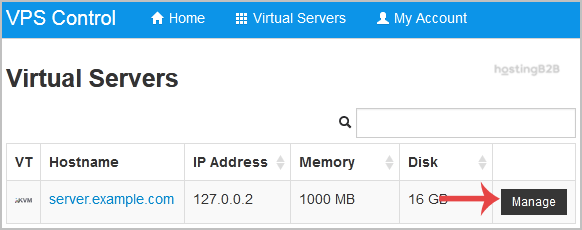
If your account manages multiple VPS instances a list will be displayed. It is crucial to select the specific server you intend to reinstall. Double-check the hostname or IP address to prevent accidentally wiping the wrong machine.
- Locate the Reinstall Option
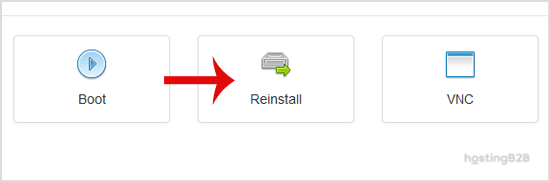
Once you have selected the correct VPS scroll down the main management page. You will find a section with various controls. Find and click the button labeled “Reinstall”. - Choose Your New Operating System
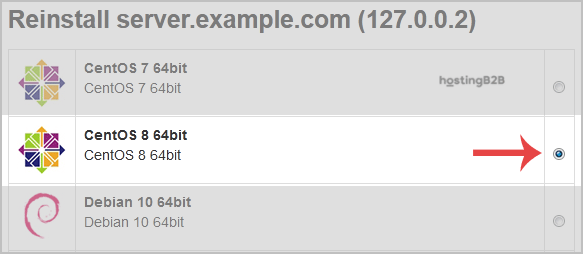
A new screen will appear presenting a list of available operating systems. You can choose from various Linux distributions like CentOS Ubuntu or Debian. Select the OS you wish to install from the dropdown menu. For instance you might choose CentOS 8 for your new setup. - Confirm the Reinstallation
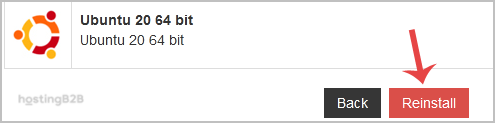
After selecting your OS scroll to the bottom of the page and click the “Reinstall” button. A final confirmation pop-up will appear to warn you again that all data will be lost. To proceed click “Yes”. - Save Your New Root Password
The system will now begin the automatic reinstallation process. A message will appear stating that the installation may take up to 10 minutes. This screen will also display a new root or administrator password. You must copy this password and save it in a secure location. You will need it to access your server for the first time after the OS is installed.
Important Post-Installation Steps
Once the reinstallation is complete your work is not finished. To secure your new server environment we recommend taking a few immediate actions. First use the new password to log into your server via SSH. After your first successful login you should change your VPS OS root password to something unique and secure. This is a vital security practice. Finally run a system update to ensure all packages are current. For businesses managing critical workloads these steps are fundamental to maintaining a secure and stable server. If you find your resource needs have changed, consider exploring our powerful VPS Hosting Solutions.
Frequently Asked Questions
Here are some common questions about the SolusVM OS reinstallation process.
The automatic process is typically very fast. As indicated in the control panel it usually takes around 10 minutes to complete. However this can vary slightly based on the server hardware and the selected operating system image.
No, the reinstallation process does not change the IP addresses assigned to your VPS. All network configurations including your main IP will remain the same after the new operating system is installed.
Yes absolutely. The reinstallation tool allows you to select any available operating system from the provided list regardless of what was previously installed. This is a great way to switch from one Linux distribution to another.
In the rare event that the automatic reinstallation process fails or your server does not come back online please contact our support team immediately. Our technical experts are available 24/7 to assist with troubleshooting.
No, the SolusVM OS reinstaller only installs a minimal base version of the selected operating system. It does not include any additional software or web hosting control panels. You will need to install any required applications manually after the reinstallation is complete.









