
Managing access to your website’s files is a critical security task. If you need to temporarily disable an FTP account without permanently deleting it, DirectAdmin provides a straightforward suspension feature. This guide shows you how to suspend an FTP account in DirectAdmin, ensuring you can revoke access quickly and securely, then restore it just as easily when needed.
Why Suspend an FTP Account Instead of Deleting It?
Choosing to suspend an FTP account offers distinct advantages over permanent deletion. Suspension is a non-destructive, reversible action ideal for temporary situations. You might suspend an account when a developer’s project is on hold, during a security review, or if you suspect unauthorized activity. This action immediately blocks logins while preserving all account settings and directory permissions. When you need to grant access again, you can unsuspend the account instantly. In contrast, if you remove an FTP account, you must recreate it from scratch, which includes reconfiguring all its specific permissions and paths.
How to Suspend an FTP Account in DirectAdmin
Follow these simple steps to temporarily disable an FTP account within your DirectAdmin control panel. This process takes only a few moments and provides immediate security benefits.

- Log in to your DirectAdmin account using your credentials.
- Navigate to the Account Manager section. From there, locate and click on the FTP Management icon. You can also type “FTP Management” into the navigation filter box to find the option quickly.

- In the FTP Management interface, you will see a list of your existing FTP accounts. Identify the specific account you wish to suspend from the list under the “Account” heading.
- Once you have selected the correct account by checking the box next to it, click the Suspend button.

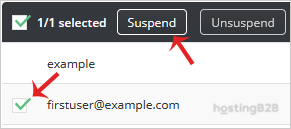
After clicking Suspend, the system will process your request immediately. The FTP account is now suspended, and any attempt to log in with its credentials will fail until it is reactivated.
How to Reactivate a Suspended FTP Account
Restoring access to a suspended FTP account is just as simple. Return to the FTP Management page in DirectAdmin, select the suspended account from the list, and you will see an Unsuspend button. Click it to instantly reactivate the account, restoring its previous access rights and functionality.
FTP Account Security Best Practices
Properly managing FTP accounts is fundamental to maintaining the security of your hosting environment. Beyond suspension, always enforce strong security policies. Ensure every account has a complex, unique password. If you need to update a user’s credentials, you can easily change an FTP Account’s password in DirectAdmin. Additionally, regularly audit your FTP accounts and delete any that are no longer needed. For users who only require access to specific directories, create accounts with restricted permissions rather than granting full access. These practices are essential components of our secure web hosting solutions.
Frequently Asked Questions
Suspending an FTP account temporarily disables login access but keeps the account’s configuration and settings intact for future use. Deleting an FTP account permanently removes it and all its associated settings. If you need the account again later, you must recreate it.
No, suspending an FTP account does not affect any files on your server. It only blocks the ability to log in and access those files through that specific FTP account. Your data remains completely safe.
When a user attempts to connect to a suspended FTP account, the server will reject the login attempt, typically with an authentication error message like “530 Login incorrect.”
In the DirectAdmin FTP Management screen, suspended accounts are typically marked differently, often with a “(Suspended)” status or a visual indicator next to the username, making them easy to identify.
If you find an FTP account on your server that you do not recognize, suspending it immediately is a wise first step to prevent potential unauthorized access. Afterward, you should investigate its origin. If it is not required, deleting it is the best course of action for long-term security.









