
Managing your website’s files is a fundamental task, and while many users rely on dedicated FTP software, there is often a faster, more direct method. The SiteWorx File Manager provides a secure and convenient way to upload content, scripts, or media directly from your web browser, eliminating the need for extra applications. This guide provides a complete SiteWorx File Manager tutorial to help you manage your files with confidence.
Step-by-Step Guide to Uploading Files
Follow these four simple steps to upload files directly to your server. This process is ideal for quick updates and managing individual files without the setup required for 3rd party FTP Software.
Step 1. Log Into Your SiteWorx Account
First, you need to access your hosting control panel. Open your web browser and navigate to your SiteWorx login page. The URL typically follows the format of your domain name with port 2443, for example, www.example.com:2443/siteworx/. Enter your username and password to proceed. If you are unsure about your credentials, you can find them in your hosting welcome email.

Step 2. Open the File Manager
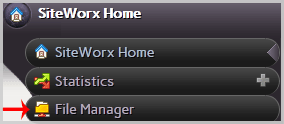
Once you are logged in, you will see the main SiteWorx dashboard. In the primary menu, locate the “File Manager” option. This is your central hub for all file-related operations within the SiteWorx control panel.
Step 3. Navigate to the Target Directory
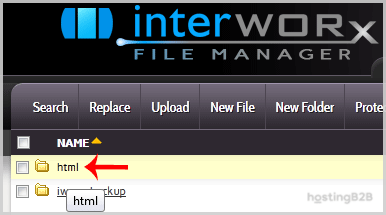
Proper SiteWorx directory navigation is essential for your website to function correctly. Before uploading, you must go to the folder where the file should reside. For files that need to be accessible to website visitors, this is almost always the public HTML folder. In the directory list, find and double-click the folder named “html” to open it. All your public website files, such as images, CSS, and HTML pages, belong here.
Step 4. Select and Upload the File
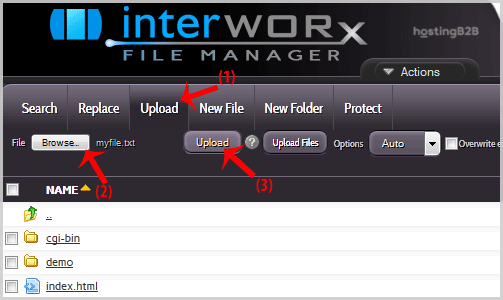
With the correct directory open, look for the “Upload” button in the top menu and click it. A new window will appear. Click the “Browse” button to open your computer’s file explorer and select the file you wish to upload. After choosing the file, confirm your selection and click the final “Upload” button in the SiteWorx window to transfer the file to the server.
Key Considerations After Your Upload
Successfully uploading a file is just the first step. To ensure your website works as expected, you should verify the upload and check its permissions. These practices are vital for maintaining a secure and functional online presence on your Web Hosting services plan.
Verify the File and Check Permissions
After the upload completes, you should see the new file listed in the File Manager. To confirm it is publicly accessible, try navigating to it in your browser. For example, if you uploaded a file named “image.jpg” to the “html” directory of “example.com”, you would visit www.example.com/image.jpg. You may also need to edit a file in the SiteWorx File Manager or adjust its permissions to ensure it has the correct read and write access for the server.
Troubleshooting Common Upload Issues
Even with a straightforward process, you might encounter an occasional issue. Most problems are easy to solve. Check for things like exceeding the maximum upload file size set by the server or uploading to an incorrect directory. If a file is not displaying correctly, incorrect file permissions are often the cause.
Frequently Asked Questions
The main advantage is convenience. The SiteWorx File Manager works directly in your browser without requiring you to install or configure any additional software, making it perfect for quick and simple file uploads.
The standard upload function is designed for single files. If you need to upload many files or entire folders, compressing them into a single ZIP file, uploading it, and then using the File Manager’s “Unzip” feature is the most efficient method.
Yes, web servers typically have a maximum file upload size configured to maintain performance and security. This limit can vary. If you need to upload a very large file, using an FTP client may be a more reliable option.
The SiteWorx File Manager will prompt you and ask if you want to overwrite the existing file. Be careful with this action, as overwriting a file cannot be undone unless you have a separate backup.
Your username and password for the SiteWorx control panel are provided in the welcome email you received when you first signed up for your hosting account. If you cannot find it, please contact our support team for assistance.









