
Are you encountering errors when uploading large website files like themes, plugins or media? This common problem is often due to the upload_max_filesize PHP setting. This guide shows you how to increase this limit in your DirectAdmin control panel using the CloudLinux PHP Selector, a powerful tool for managing your hosting environment.
Prerequisites for Changing PHP Settings
Before you start, ensure you are using a non-native PHP version. The options menu may not appear if your account is set to the server’s default native version. You can easily change PHP version using the same CloudLinux Selector tool if you encounter any issues with visibility of the settings.
How to Increase upload_max_filesize
Follow these four steps to adjust your account’s file upload limit. This process allows you to modify your PHP configuration safely and without editing any files manually.

- Log into DirectAdmin
First access your DirectAdmin account dashboard using your provided credentials. - Find the PHP Selector
Under the ‘Extra Features’ section find and click the ‘Select PHP version’ icon. You can also use the search filter at the top of the page to find it quickly.
- Open PHP Options
Inside the CloudLinux PHP Selector tool click on the ‘Options’ tab in the main menu. This action reveals a list of common PHP settings you can manage for your account. - Select the New Limit
Locate the upload_max_filesize directive in the list of options. Use its dropdown menu to choose a higher value that meets your needs. The change is applied instantly with no further action required.


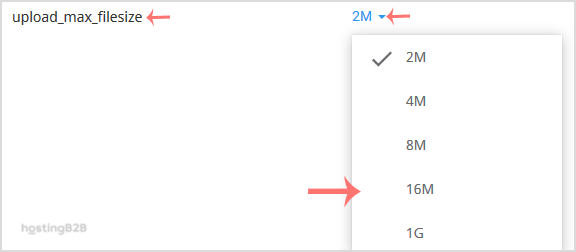
You have successfully increased the upload_max_filesize value. If you find yourself frequently adjusting resource limits it may be time to consider a more powerful solution like our scalable VPS hosting which offers greater control and higher performance ceilings.
Frequently Asked Questions
The upload_max_filesize is a PHP directive that sets the maximum size in megabytes for a single file that can be uploaded to your website. If a user tries to upload a file larger than this value the process will fail.
While upload_max_filesize limits the size of a single file post_max_size limits the total size of all data sent in a single POST request which includes all files and form data. For file uploads to work your post_max_size value must be greater than or equal to your upload_max_filesize value.
The maximum value available in the dropdown menu is determined by your hosting plan’s server-level configurations. If you require a limit higher than what is offered you may need to upgrade to a plan with more resources such as a dedicated server hosting solution.
The ‘Options’ tab is only available when your account is using a non-native version of PHP. If you are using the server’s default ‘native’ version you will need to switch to a different version like 7.4 or 8.1 to access the customizable options.
You can verify the change by creating a PHP file containing the code <?php phpinfo(); ?> and uploading it to your server. When you access this file in your browser search for `upload_max_filesize` to see the current active value for your account.









