
Encountering errors when uploading large files or submitting complex forms on your website can be a significant obstacle. Often, the cause is a PHP configuration limit called `post_max_size` being set too low. This guide provides a clear, step-by-step process to increase this value directly within your DirectAdmin control panel using the CloudLinux PHP Selector, ensuring your application runs smoothly.
Understanding the post_max_size Directive
Before making changes, it is helpful to understand what this setting does. The `post_max_size` directive in PHP defines the maximum size of POST data that PHP will accept. When a user submits a form or uploads a file, the data is sent to the server using a POST request. If the total size of this data exceeds the `post_max_size` limit, PHP will reject the request, often resulting in a failed upload or a generic error message. This makes it a critical setting for websites that handle user-generated content, such as forums, content management systems, or e-commerce platforms with large product forms.
How to Increase post_max_size in DirectAdmin
You can easily modify the `post_max_size` value for your account using the integrated CloudLinux tools in DirectAdmin. This method provides a simple graphical interface and does not require manual file editing. Follow these steps carefully to adjust the setting.

- Log in to your DirectAdmin Account
Begin by accessing your DirectAdmin control panel using your provided username and password. - Navigate to the PHP Selector
Once logged in, find the Extra Features section. Click the Select PHP version icon. If you cannot find it immediately, you can use the navigation filter or search box at the top of the page and type “Select PHP” to locate the tool quickly.
- Switch to the Options Tab
Inside the PHP Selector interface, you will see several tabs. Click on the one labeled Options to view the configurable PHP directives for your account.
Note If this page displays an error mentioning a “native” PHP version, you must first return to the main selector screen and choose a non-native version from the dropdown list. For example, if your server’s native version is 7.4, select a version like 8.0 or 8.1 before proceeding.
- Locate and Modify post_max_size
Scroll through the list of options until you find the `post_max_size` directive. Click on the current value shown next to it, which will reveal a dropdown menu. Select a new, larger limit that meets your application’s requirements. The change is saved automatically.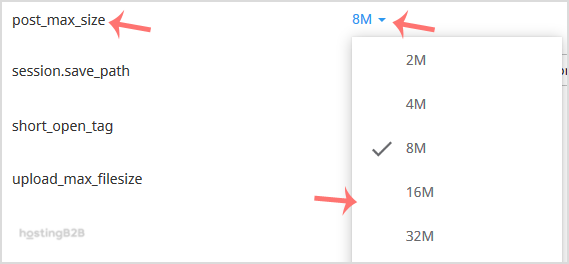
After completing these steps, you have successfully increased the `post_max_size` value. This change should immediately resolve issues related to POST data limits on your website.
Important Considerations for PHP Upload Limits
When adjusting `post_max_size`, remember that it works in conjunction with other PHP directives. For successful file uploads, the `upload_max_filesize` value must be less than or equal to `post_max_size`. It is also wise to ensure your `memory_limit` is set higher than your `post_max_size` to prevent scripts from running out of memory while processing large uploads. You can increase PHP upload file size limit and adjust PHP memory limit using the same interface. Managing these settings correctly is a key part of maintaining high-performance reliable web hosting solutions.
Frequently Asked Questions
Here are answers to common questions about modifying PHP settings in DirectAdmin.
The `upload_max_filesize` directive limits the size of a single uploaded file. The `post_max_size` directive limits the total size of all data in a POST request, which includes all files plus any other form data. For file uploads to work, `post_max_size` must be greater than or equal to `upload_max_filesize`.
A safe value depends entirely on your website’s needs. A common setting is 64M or 128M. Setting this value excessively high can make your server vulnerable to denial-of-service attacks, so only increase it to a level that accommodates your largest expected uploads or form submissions.
This usually happens when your account is set to use the server’s “native” PHP version. The CloudLinux PHP Selector can only manage non-native versions. To fix this, go to the main selector page and use the dropdown menu to change PHP version in DirectAdmin to any other available option. The Options tab will then appear.
Yes, the settings modified in the CloudLinux PHP Selector apply to the entire hosting account and all websites operating under it. It is not possible to set different values for different domains within the same account using this tool.
The change is typically applied instantly. As soon as you select the new value from the dropdown menu in the PHP Options, the server’s configuration is updated. You do not need to restart any services.









