
Connecting your professional domain-based email to a desktop client like Microsoft Outlook 2019 streamlines your workflow and centralizes communications. This guide provides a clear and direct path to set up your cPanel email account with Outlook 2019 using secure IMAP settings. Follow these steps to manage your email efficiently from your desktop.
Prerequisites for Setup
Before you begin the Outlook 2019 configuration, please ensure you have completed the necessary preparations. You must have already created the email address you wish to configure. If you have not done this yet, you can follow our simple guide to create a cPanel email account. You will also need the password for this email account.
Step-by-Step Outlook 2019 Configuration
Follow this procedure carefully to connect your email account. These steps guide you through the manual setup process, which gives you full control over the connection settings for optimal security and performance.

- Open Outlook 2019
Launch the Microsoft Outlook 2019 application on your computer.
- Navigate to Add Account
In the top menu, go to the File tab. From the Info screen that appears, click the Add Account button.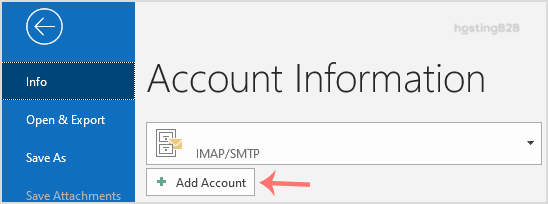
- Enter Your Email Address
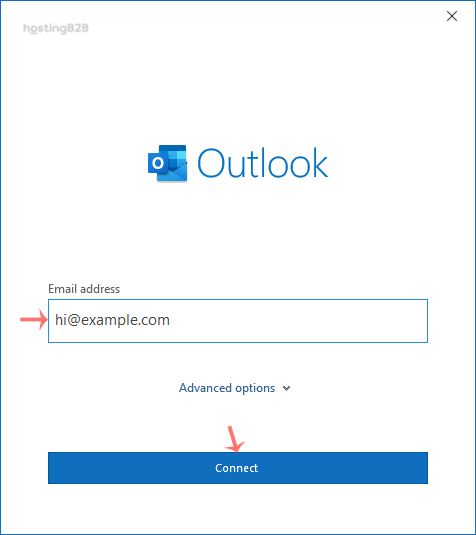
In the new window, type your full domain-based email address, for example, [email protected]. Click the Connect button to proceed.
- Choose Advanced Setup
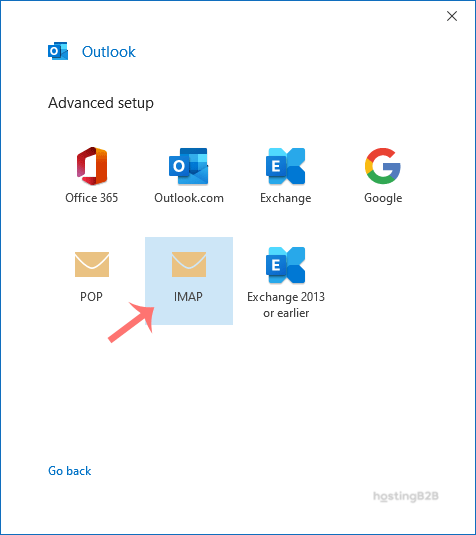
Outlook will present several account types. From the Advanced setup screen, you must select IMAP to continue with the manual configuration. - Enter IMAP Account Settings
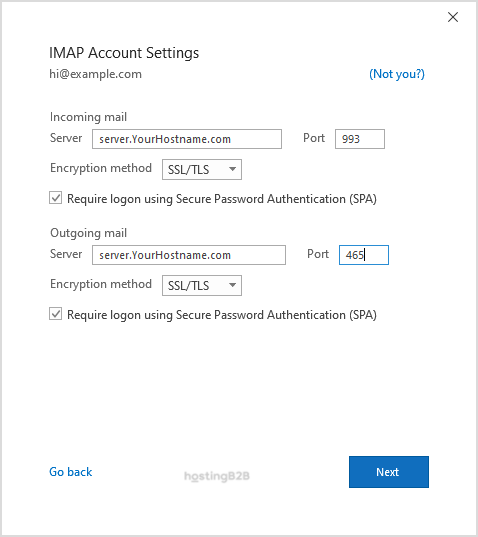
This is the most critical step. You must enter the correct incoming and outgoing server details. Refer to the section below for guidance on finding your specific server hostname and the correct port numbers. Ensure all details are entered accurately. - Provide Your Password
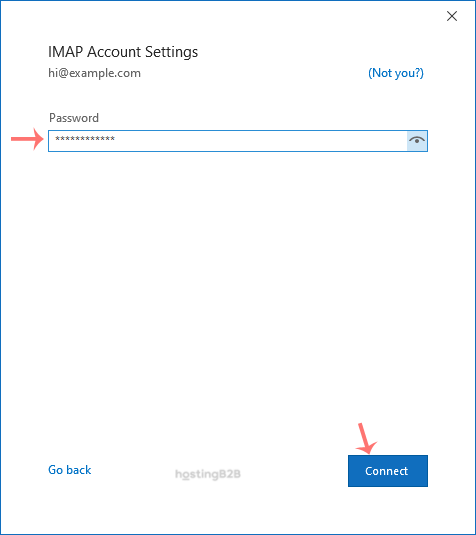
Enter the password associated with your cPanel email account. Double-check for accuracy, as password errors are a common cause of setup failure. Click Connect. - Finalize the Setup
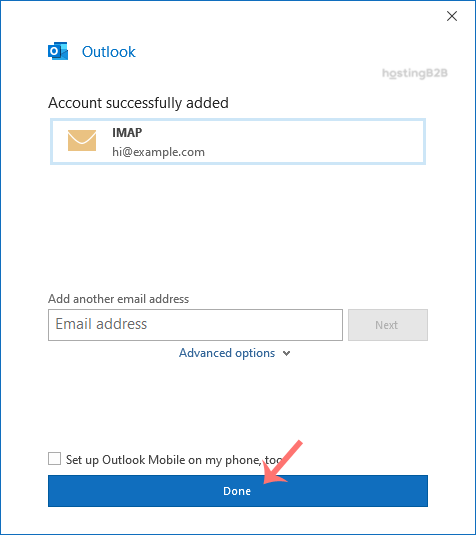
Once Outlook successfully connects to the server, you will see a confirmation message. Simply click the Done button to complete the process.
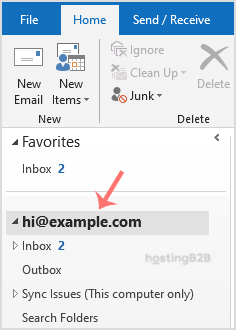
Your account is now configured. You can access and manage your email from the left sidebar on the Home tab within Outlook. This setup provides a reliable foundation for your professional domain-based email hosting.
Understanding Your IMAP and SMTP Settings
For a successful manual email configuration in Outlook, you need precise server details. IMAP handles incoming mail, while SMTP handles outgoing mail. You can find your specific mail server hostname within your cPanel account, often under the “Email Accounts” section by clicking “Connect Devices”.
While your hostname is unique, the recommended secure settings are standard. Use these values in Step 5.
- Incoming Mail Server (IMAP)
- Server Hostname Your unique server name, like mail.yourdomain.com
- Port 993
- Encryption Method SSL or TLS
- Outgoing Mail Server (SMTP)
- Server Hostname Your unique server name, same as incoming
- Port 465
- Encryption Method SSL or TLS
Using these secure ports and encryption methods is essential for protecting the privacy and integrity of your communications.
Troubleshooting Common Connection Issues
If Outlook cannot connect after you complete the steps, review these common points of failure. Most issues are quickly resolved by checking your inputs.
- Incorrect Password This is the most frequent error. Carefully re-enter your email password to ensure there are no typos.
- Wrong Server Hostname Verify that the incoming and outgoing mail server hostname is exactly what is specified in your cPanel account. Do not guess or use generic names.
- Firewall or Antivirus Blocking Sometimes, security software on your computer can block the connection ports (993 or 465). Temporarily disabling the firewall can help diagnose if this is the cause.
- Incorrect Port or Encryption Double-check that you have entered the correct port numbers and selected SSL or TLS for encryption as recommended.
If you continue to experience issues, you can always use the cPanel Webmail interface to access your email while troubleshooting the Outlook connection.
Frequently Asked Questions
While POP3 is an option, we strongly recommend IMAP. IMAP synchronizes your email across all devices, meaning actions you take on one device (like reading or deleting an email) are reflected everywhere. POP3 typically downloads emails to a single device and removes them from the server, which is less flexible for modern use.
Log into your cPanel account, navigate to the “Email Accounts” section, find your email address in the list, and click the “Connect Devices” button next to it. cPanel will display the exact incoming and outgoing server hostnames for your account.
Yes, the core IMAP and SMTP settings (server name, ports, encryption) are universal. While the user interface and specific steps may differ slightly in other versions of Outlook or other email clients, the server details you enter will be the same.
This is almost always due to incorrect SMTP (outgoing mail server) settings. Verify that the SMTP server hostname, port (465), and encryption method (SSL or TLS) are correct. Also, ensure that your SMTP settings require authentication using your full email address and password.
Absolutely. Using the same IMAP server settings, you can configure your email on multiple devices. We have a specific guide for cPanel email setup on Apple iOS that you may find helpful.









