
Effectively managing your website’s files and directories is fundamental for security, performance, and organization. The SiteWorx File Manager provides a powerful web-based interface to handle these tasks without needing FTP clients. This guide provides a complete tutorial on SiteWorx directory management, showing you how to create new folders and files with precision and confidence.
Accessing the SiteWorx File Manager
Before you can begin managing your website’s structure, you first need to log into your control panel and locate the File Manager. This is your central hub for all file-related operations.
- Log into your SiteWorx account. The URL is typically your domain name followed by port 2443, for example, www.example.com:2443/siteworx/.
- From the main SiteWorx Menu on the left, locate and select the File Manager option. This will open the main file management interface.
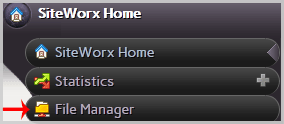
How to Create a New Folder in SiteWorx
Creating folders, or directories, is essential for organizing your website’s assets. For instance, you might create separate folders for images, stylesheets, or scripts. This process is straightforward and helps keep your root directory clean.

- Navigate to the Correct Directory. Inside the File Manager, you must first go to the location where you want the new folder to reside. For web-accessible files, this is almost always the public HTML folder. In the directory list on the left, find and double-click the html folder.
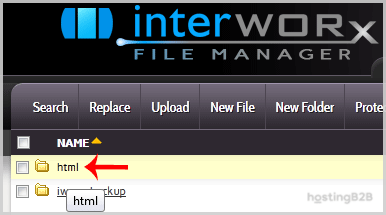
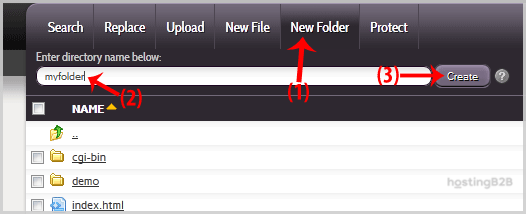
- Open the New Folder Dialog. With the correct parent directory selected, click on the New Folder option in the top menu.
- Name and Create the Folder. A prompt will appear asking you to name the new directory. In the field labeled Enter directory name below, type your desired folder name, such as my-images or assets. Click the Create button to finalize the process.
How to Create a New File in SiteWorx
You can also create new, empty files directly within the File Manager. This is useful for adding new pages like an HTML file, a configuration file like .htaccess, or a simple text file for notes.
- Navigate to the Target Directory. Just as with creating a folder, ensure you are in the correct location first, such as the /html directory or a subfolder within it.
- Open the New File Dialog. Click on the New File option from the main menu.
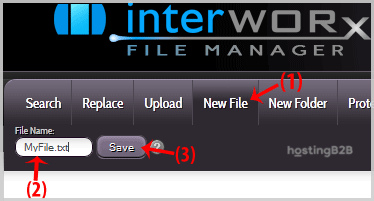
- Name and Save the File. In the File Name field, enter the complete name for your new file, including its extension. For example, you might enter about-us.html or config.txt. Click the Save button to create the empty file on your server. You can then edit it using the File Manager’s built-in editor.
Best Practices for File and Folder Organization
Proper SiteWorx directory management goes beyond just creating items. Following a few simple best practices ensures your site remains maintainable and secure. Use descriptive, lowercase names for files and folders, and use hyphens instead of spaces. Regularly clean up old or unused files to save space and reduce your site’s attack surface. For critical data, it is always wise to generate a full backup of your SiteWorx account before making significant changes. While this guide covers creation, remember that you can also learn how to upload files via the SiteWorx File Manager to add existing content to your server.
Frequently Asked Questions
Here are answers to common questions about using the SiteWorx File Manager.
The html folder, sometimes named public_html, is the root directory for your website. Any files or folders you place inside it will be accessible to visitors via their web browser. Files outside this directory are not publicly visible.
Yes, SiteWorx includes a built-in file editor. After creating or selecting a file, you can use the “Edit” option in the menu to make changes directly in your browser. For detailed instructions, see our guide on how to edit a file in the SiteWorx File Manager.
File permissions control who can read, write to, and execute files. SiteWorx allows you to change these settings, which is crucial for securing scripts and sensitive configuration files. You can typically access these settings by selecting a file or folder and choosing a “Permissions” or “Chmod” option.
Yes. It is best to avoid using special characters, spaces, and uppercase letters in file and folder names. Stick to letters, numbers, hyphens, and underscores for maximum compatibility across all web servers and systems.
The SiteWorx File Manager generally allows you to select multiple files or folders using checkboxes or by holding the Ctrl or Shift key. This lets you perform bulk actions like moving, copying, or deleting several items simultaneously.
For users with complex needs or those managing a large number of sites, our Blazing-Fast & Secure Web Hosting plans provide a robust foundation. If your requirements grow further, exploring our customizable dedicated hosting solutions can offer unparalleled control and performance.









