Keeping your contact information current is a critical part of managing your server environment. Your SolusVM account email address is the primary channel for receiving important security alerts, service notifications, and password reset links. This guide provides a clear, step-by-step process to update your SolusVM email, ensuring your account remains secure and you stay informed.
Why It Is Important to Update Your SolusVM Email
Your registered email is more than just a username. It is a vital link for account security and administration. An outdated email address can expose you to significant risks, such as missing critical security warnings or losing the ability to recover your account. Regularly verifying and updating your email helps you effectively manage SolusVM VPS login alerts and maintain full control over your powerful VPS Hosting solutions.
How to Change Your Email in the SolusVM Control Panel
Follow these four simple steps to update the email address associated with your SolusVM account. The process is straightforward and can be completed in just a few moments.

- Log In to SolusVM
First, you need to access your control panel. If you are unsure how to proceed, you can find detailed instructions in our guide on how to login to your SolusVM Control Panel. - Select the Correct VPS
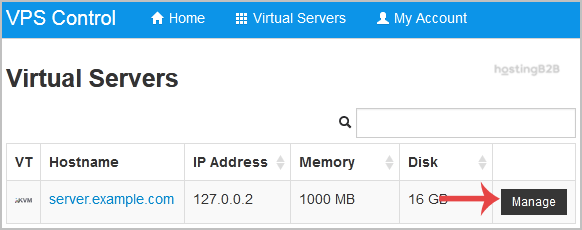
If you manage multiple VPS instances under a single account, SolusVM will present you with a list of your servers. Be sure to select the specific VPS for which you want to update the contact details. If you only have one VPS, you can skip this step.
- Navigate to Your Account Settings
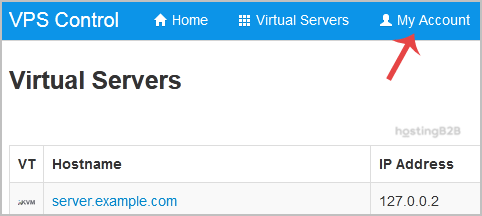
In the main navigation bar at the top of the dashboard, locate and click on the My Account link. This will take you to your user profile and settings page. - Update and Save Your New Email Address
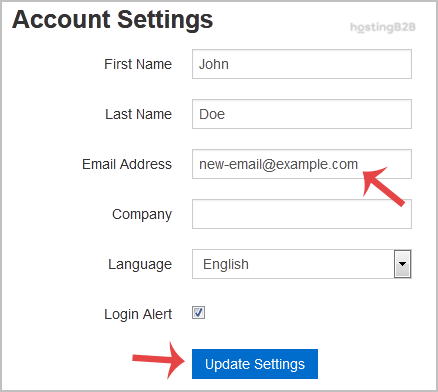
Within the Account Settings section, you will see a field labeled for your email. Enter your new, desired email address into this box. Double-check it for any typos, then click the Update Settings button to confirm the change.
What to Expect After the Update
Once you click the update button, the system will process your request immediately. You should see a confirmation message on the screen that says “Settings Updated Successfully”. We recommend logging into your new email inbox to check for any verification messages from the system. For enhanced security, you may also consider it a good time to change your SolusVM password to further safeguard your account.
Frequently Asked Questions
Here are answers to some common questions about managing your SolusVM account details.
Your SolusVM email receives critical notifications including security alerts, password reset confirmations, resource usage warnings, and important service announcements related to your VPS.
If you no longer have access to the email address on file and cannot log in to change it, you will need to contact our support team for assistance. We can help you verify your identity and restore access to your account.
Changing your email within the SolusVM control panel typically only affects administrative and technical notifications. Your primary billing contact information is usually managed through our main client portal, not directly within SolusVM.
Beyond using a strong password for your SolusVM account, consider using our secure business email hosting for your primary contact address. This provides an additional layer of protection for all your important communications.
It is good practice to review your account settings, including your contact email and other profile details, at least once every six months or whenever your personal information changes. This ensures you never miss an important update.