
User-level email filters in cPanel are powerful tools for managing your inbox, but a misconfigured or outdated filter can cause major headaches by blocking important messages. If you are troubleshooting email delivery problems or simply need to remove an old rule, this guide provides a direct, step-by-step process to help you safely delete a specific email filter for any account in your cPanel environment.
Understanding cPanel Email Filters
Before removing a filter, it is helpful to understand the two main types in cPanel. User-level filters apply only to a single email address, giving you granular control over one inbox. In contrast, global email filters apply to every email account on your domain. If you need to manage rules for all users, you may want to edit global email filters in cPanel instead. This guide focuses exclusively on removing a filter for an individual user account.
Guide to Delete an Email Filter
Follow these instructions carefully to locate and remove a specific user-level email filter. This process is straightforward and gives you full control over your email routing rules.

- Log into Your cPanel Account
First, access your hosting control panel by logging into cPanel with your username and password.
- Navigate to Email Filters
In the main cPanel dashboard, find the “Email” section. Within this section, click the “Email Filters” icon to proceed. - Select the User Account
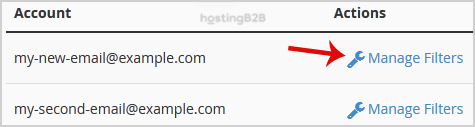
You will see a list of all email accounts under the “Filters by Users” heading. Locate the specific email account whose filter you wish to delete and click the “Manage Filters” link next to it. - Find and Delete the Filter
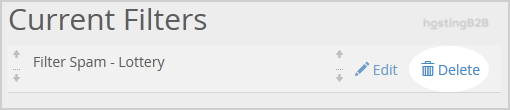
The next screen displays all “Current Filters” for the selected account. Identify the filter you want to remove from the list and click the “Delete” option next to its name. - Confirm the Deletion
A confirmation prompt will appear to ensure you did not click by accident. Click the “Delete Filter” button to permanently remove the rule from your account.

Once you complete these steps, the filter is successfully deleted. The custom rules it contained will no longer be applied to any incoming messages for that email account.
What Happens After Deleting a Filter
Removing a user-level filter immediately stops its rules from processing incoming mail. Emails that were previously being redirected, discarded, or sent to a specific folder by that filter will now arrive in the main inbox as normal. This action does not delete any emails that have already been processed. If you removed the filter to fix a delivery issue, you can verify the solution by sending a test email or checking your inbox via your cPanel Webmail account. If you need to set up a new rule, you can easily create a new user level email filter in cPanel at any time. For more advanced protection, our secure business email hosting solutions offer robust, built-in security features.
Frequently Asked Questions
A user-level email filter is a set of rules that you create for a single, specific email address. It allows you to automatically manage incoming messages for that account, such as sending emails from a certain sender to a specific folder, deleting spam, or redirecting messages.
No, deleting a filter will not delete any emails that are already in your inbox or other folders. The action only affects how new, incoming messages are handled from that point forward. Emails previously moved by the filter will remain where they are.
While custom filters are useful, cPanel includes a powerful dedicated tool for spam. We recommend you manage spam filtering using SpamAssassin, which is designed specifically to detect and isolate unsolicited emails with high accuracy.
No, deleting a filter is a permanent action, and there is no “undo” button. If you remove a filter by mistake, you will need to manually recreate it with the same rules and conditions as before
No, they are different. A user-level filter applies only to one email address. A global email filter applies to all email accounts associated with your domain. Global filters are useful for creating broad rules, while user filters provide more specific control for individual accounts.









