
If you have a subdomain configured to forward visitors to another URL, you may need to disable that setting to restore its original function. This guide provides a clear, step-by-step process to remove a subdomain redirect in Plesk, allowing you to host content directly on the subdomain again. Following these instructions will change the hosting type from ‘Forwarding’ back to ‘Website Hosting’.
Understanding Plesk Hosting Types
The Plesk control panel manages how domains and subdomains behave through a setting called ‘Hosting Type’. When a subdomain is set to ‘Forwarding’, it acts as a simple pointer, sending all visitors to a different web address. To serve content like a normal website, the subdomain must be set to ‘Website Hosting’. Our guide will walk you through making this specific change in your Plesk hosting settings.
How to Remove a Subdomain Redirect
Follow these six precise steps to stop subdomain forwarding and revert to standard website hosting. This process is straightforward and gives you back full control over your subdomain’s content and DNS.

- Log In to Your Plesk Account
First, Log in to your Plesk account using your administrator credentials. - Navigate to Websites & Domains
Once logged in, locate the main navigation menu on the left side of the screen. Click on the ‘Websites & Domains’ section to view a list of all managed domains.
- Select Your Subdomain
Find the specific subdomain that is currently configured with a redirect. Click on its name to open its dedicated management dashboard. - Open Hosting Settings
Within the subdomain’s dashboard, locate and click on the ‘Hosting & DNS Settings’ icon or link. This will take you to the page where you can manage its core configuration. - Initiate the Hosting Type Change
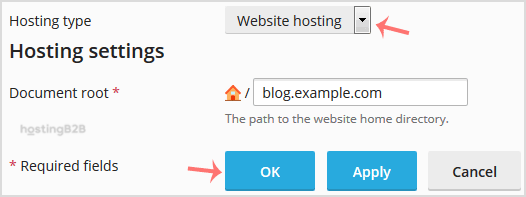
On the Hosting Settings page, find the ‘Hosting type’ field. You should see that it is currently set to ‘Forwarding’. To the right of this, click the ‘Change’ link. - Select Website Hosting and Confirm
A new window will appear. From the ‘Hosting type’ drop-down menu, select the ‘Website Hosting’ option. Click the ‘OK’ button to save the change. This action officially removes the redirect.

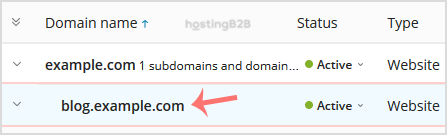
 icon or link. This will take you to the page where you can manage its core configuration.
Verifying the Redirect is Removed
After you have updated the hosting type, the subdomain will no longer forward visitors. It now points to its own document root directory within your Web Hosting solutions package. To confirm the change, you may need to clear your browser’s cache before visiting the subdomain URL. You should now see the content you have uploaded to its directory instead of being redirected.
Frequently Asked Questions
Forwarding simply redirects a domain or subdomain to another URL. Website Hosting configures it to serve files from a specific directory on your server, allowing it to function as a distinct website or web application.
The change in Plesk is typically instant. However, due to browser or network caching, it might take a few minutes for you to see the result. Clearing your browser cache usually resolves any delay.
No, changing the hosting type from Forwarding to Website Hosting does not delete any files. It only changes how Plesk handles incoming requests to the subdomain. Your files in the subdomain’s document root will remain untouched.
First, ensure you have cleared your browser cache thoroughly. If the issue persists, check for any redirects configured in a .htaccess file within the subdomain’s document root, as this can override Plesk settings.
Yes, you can always go back into the Hosting Settings and change the type back to Forwarding. If you need to do this, you can follow our guide to redirect a subdomain in Plesk.
If the subdomain is completely unnecessary, you can also remove the subdomain entirely from your Plesk account. This is a permanent action that deletes its configuration.









