
Removing an old or unused subdomain from your SiteWorx control panel is a straightforward way to keep your hosting environment organized and secure. This guide provides a safe, step-by-step process for subdomain deletion, including critical precautions to take before you begin.
Before You Delete Important Considerations
Before you proceed with the SiteWorx subdomain deletion process, it is essential to understand the consequences. Deleting a subdomain is a permanent action that removes all associated files, databases, and email accounts linked to it. This action cannot be undone. We strongly recommend creating a full backup of the subdomain’s data if you think you might need it in the future. Proper Web Hosting account management includes careful planning before removing any assets.
Step-by-Step Guide to Remove a Subdomain
Follow these instructions carefully to delete a subdomain from your SiteWorx account. This process requires you to confirm the deletion to prevent accidental removal.

- Log into Your SiteWorx Account
First, access your SiteWorx control panel. This is typically done by navigating to your domain with the port number 2443, for example, www.example.com:2443/siteworx/. - Navigate to Hosting Features
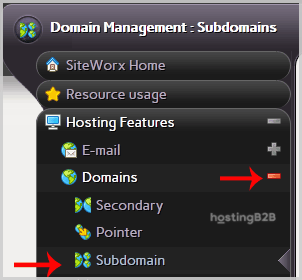
In the main menu on the left, locate the Hosting Features section. If it is not already expanded, click on it to reveal the options. - Access the Subdomain Menu
Within Hosting Features, click on the Domain menu item, and then select the Subdomain option from the dropdown list.
- Select the Subdomain to Delete
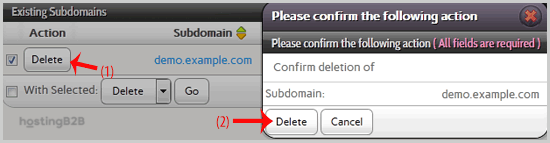
You will see a list of your existing domains and subdomains. Find the specific subdomain you wish to remove and select the checkbox next to its name. - Initiate the Deletion
With the correct subdomain selected, click the Delete button located near the bottom of the list. - Confirm the Deletion
A confirmation dialog box will appear to prevent accidental deletion. Review the warning and click the Delete button again to permanently remove the subdomain.
Verifying the Subdomain Deletion
After you confirm the action, SiteWorx will process the request. A success message should appear on your screen confirming that the subdomain has been removed. The subdomain will no longer appear in your list under the Domain menu. If you need to manage other domains, you might be interested in learning how to remove a secondary domain in SiteWorx as well.
Frequently Asked Questions
Here are answers to common questions about the SiteWorx subdomain deletion process.
When you delete a subdomain in SiteWorx, the corresponding directory and all files within it are permanently removed from the server. This is why backing up your data beforehand is so important.
No, you cannot undo a subdomain deletion. The process is permanent. The only way to recover the data is to restore it from a backup that you created before the deletion.
Deleting a subdomain will not impact your main domain or any other subdomains on your account. The action is isolated to the specific subdomain you choose to remove.
The removal from your SiteWorx account is nearly instant. However, it may take some time for DNS caches around the world to update, though the subdomain will be inaccessible from your server immediately.
Yes, the SiteWorx deletion process is designed to be comprehensive. It typically removes associated email accounts and may also remove databases that are exclusively used by that subdomain, helping you clean up hosting resources effectively.
The process for managing subdomains varies between control panels. We also have guides on how to remove a subdomain in cPanel and how to remove a subdomain in Plesk.









